




“One platform for any kind of work” — This is how monday.com positions itself in the current project management landscape. It’s a compelling claim, but can it actually deliver the functionality that teams require for any project that they manage?
To find out, I tested monday.com’s mettle by putting it to work in real, day-to-day workflows. As part of the review process, I built several workflows using task-tracking boards, multi-step pipelines, and development sprint setups. This allowed me to evaluate how monday.com performs for both simple and highly structured workflows.
In this monday.com review, I’ll break down everything from this project management software’s user interface and core features to its pricing and limitations, so you can decide whether it’s the right project management tool for your team.
Key Takeaways: monday.com Review
- monday.com shines with automations and integrations: On paid plans, you get generous automation/integration actions per month, making it easy to streamline repetitive tasks and connect your account with tools like Gmail, Slack, and Google Drive.
- monday.com is visually appealing: The interface is clean, intuitive, and visually driven with multiple view types (Kanban, timeline/Gantt, calendar, charts).
- monday.com offers a free plan, with paid plans starting at $9 per seat/month when billed annually, plus an Enterprise option. Its pricing scales predictably as teams grow, making it suitable for users who need increasing automation, integrations, and reporting depth over time.
Is monday.com difficult to learn?
monday.com has a clean and intuitive interface that is fairly easy to learn. Its work OS includes several products, and for this review, I focused primarily on monday dev and work management to see how they perform in real workflows.
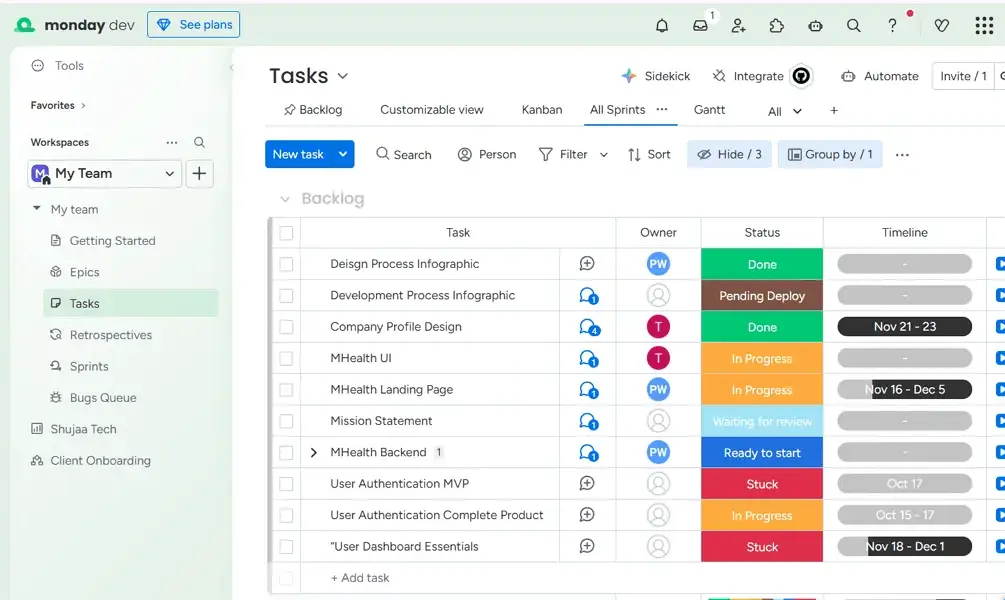
At first glance, I noticed how both the desktop and web versions of these products use familiar left-hand navigation panels that display key features such as boards, dashboards, and workspaces.
It also comes with a powerful search engine that lets you find docs, files, boards, tags, and people faster. This layout keeps the learning curve low because the interface is pretty standard among project management tools.
One aspect of monday.com’s interface that I particularly enjoyed was its “product switcher,” located in the top-right corner of the screen. This feature allows users to move seamlessly between monday.com products, reducing context switching and preventing workflow interruptions.
Moreover, I appreciated how monday.com’s mobile app mirrors much of the desktop app’s functionalities. I could assign tasks, message teammates, and track progress on my phone just as easily as on the web and desktop versions.
There are also mobile-specific UI features, such as the plus icon in the bottom-right corner, which serves as a shortcut to add new items or boards in your workspace. This made it so much easier to delegate tasks on the go.
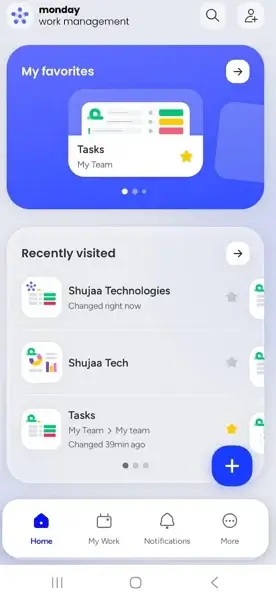
However, monday.com has its shortcomings in usability. For instance, on all app versions, you’ll need to navigate through layers of menus before you can find the advanced automations and column types. Meanwhile, in the mobile app, the screen can quickly feel crowded, making it challenging to perform advanced actions.
Despite these drawbacks, I still found monday.com easy to learn and use, even for those coming from simpler tools like Trello. You can check out our monday.com vs Trello comparison guide to learn more about their differences.
monday.com Key Features
monday.com offers a wide range of tools designed to help teams plan, execute, and track work across any process. Below, I break down its core features, explaining how each one works, where it shines, and where it may fall short.
1. monday.com Project Management: Customize How You Visualize Your Work
monday.com’s project management system is built around flexible, customizable workspaces. I particularly loved the way the platform lets you choose from different monday.com verticals like monday Work Management, monday Sales CRM, or monday Dev when creating a new workspace. This allows you to tailor the entire environment to the type of work your team does.
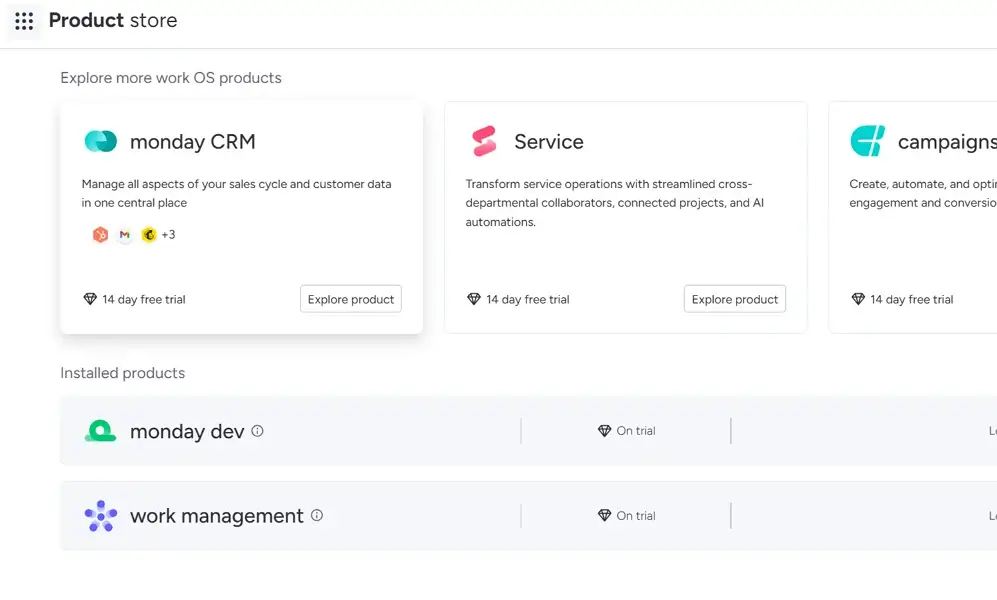
At the core of each workspace are boards, which act as the central hub for tasks, timelines, and project assets. Each workspace has boards, structured with items (your tasks), groups (task sections), and columns (data fields). While the interface looks simple on the surface, it’s surprisingly powerful once you start customizing it.
A monday.com board would typically have the following fields to help you organize project data:
- Groups: Color-coded sections that divide tasks by phase, priority, or category.
- Items: The individual tasks, action items, or deliverables inside each group.
- Columns: Customizable data fields like status, owners, dates, progress bars, numbers, tags, dependencies, and formulas.
- Sub-items: You can add sub-items, which act like task dependencies, to any item on your board and still keep your board’s structure.
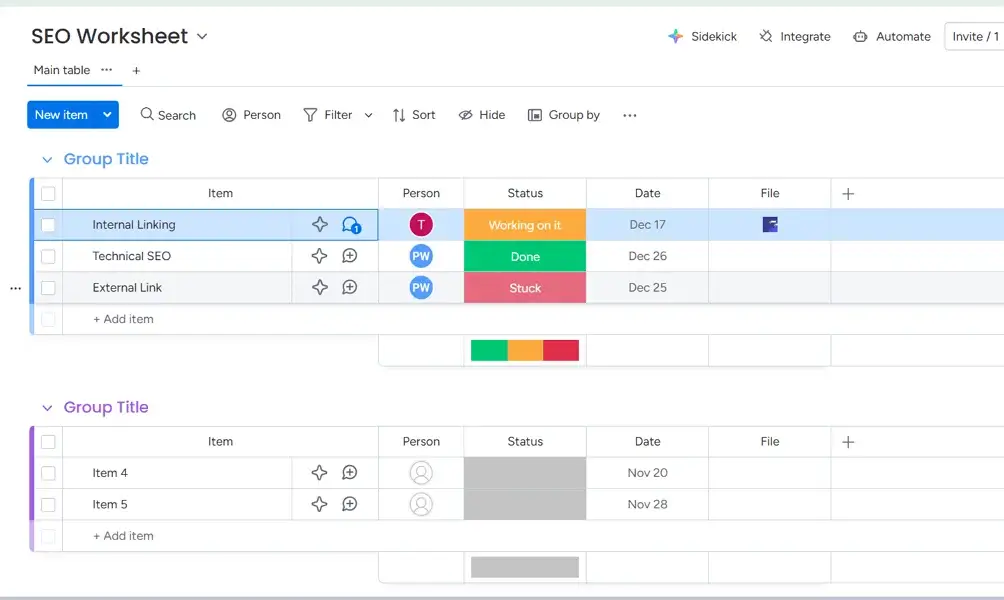
However, monday.com’s flexibility comes with a trade-off. As a new user, it took me some time to understand the relationships among groups, items, and columns, especially when building boards from scratch or using advanced column types. While this granular level of visualization is a major strength, teams using multiple boards may find it overwhelming if they don’t have clear naming conventions or templates.
The above-mentioned consideration aside, once the system is set up, monday.com’s project management experience is one of its strongest selling points. Its customizable structure, multiple visualization options, and product-specific workspaces make it one of the most adaptable tools for teams looking to manage projects in ways they already understand.
2. monday.com Task Management: Manage Tasks Seamlessly Without Switching Tools
monday.com’s task management features are built around flexible, customizable “items” that function as tasks within each board. You can add multiple components to these items, such as:
- Task Name (Item). This serves as the title of the task.
- Assignee: You can assign one or multiple members to a single task. monday.com also enables users to invite external collaborators as guests on specific plans.
- Status (task progress): Indicates the task’s progress. It has preset statuses such as “Working on It”, “Stuck”, and “Done”. However, the text, colour codes, and number of items on these statuses are fully customizable.
- Due Date or Timeline: Due dates track the specific day a task must be completed. Meanwhile, timelines show a start date and an end date.
- Priority: Similar to statuses, priority tags can be customized. You can choose from preset options like “High,” “Medium,” or “Low,” or create your own priority labels based on your team’s workflow.
- Task Dependencies: Dependencies let you define the relationship between two tasks. For instance, marking one task as “blocked” until another is completed. These are set up through the Dependency column, where you link related items so monday.com can adjust timelines or send alerts when dependency-related changes occur.
- Files and Updates Section: Team members can share files, post comments, tag colleagues, and attach assets like images, PDFs, design mockups, or spreadsheets. This comes in handy for projects that involve reviews, revisions, or collaboration, like design projects, content production, development tasks, and client deliverables
By customizing these fields, teams can better control how work is organized and tracked. This means they can create anything from simple to-do lists to complex operational workflows without switching tools.
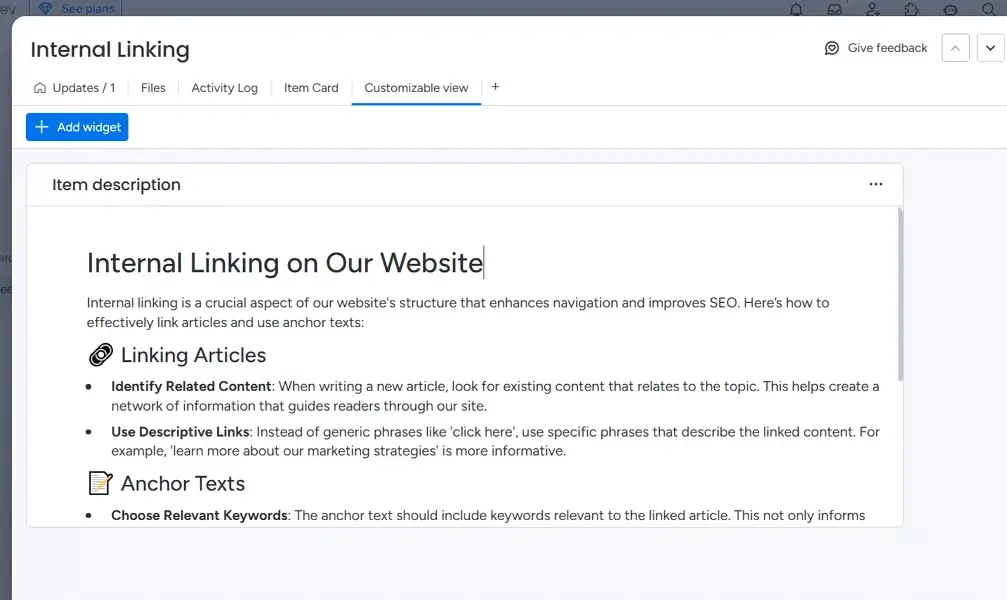
Moreover, monday.com’s item-based structure makes task ownership more transparent and collaboration much easier. It is also flexible, as teams can build workflows that match their processes rather than adapt to rigid templates. Color coding, multiple views, and seamless communication inside each task make daily tracking easier.
The points above aside, monday.com’s task management has some limitations. First, highly detailed boards can feel crowded, and complex task structures. For instance, those involving dependencies or advanced automations may require more setup time. Also, some of the most powerful task features, such as enhanced automations, are locked behind higher-tier pricing plans.
3. Time Tracking with monday.com: Track Time Natively
monday.com’s built-in time tracking feature gives teams a way to measure how long team members spend on tasks. It works through a dedicated Time Tracking column that can be added to any board, letting users start, pause, or log time directly within the platform.
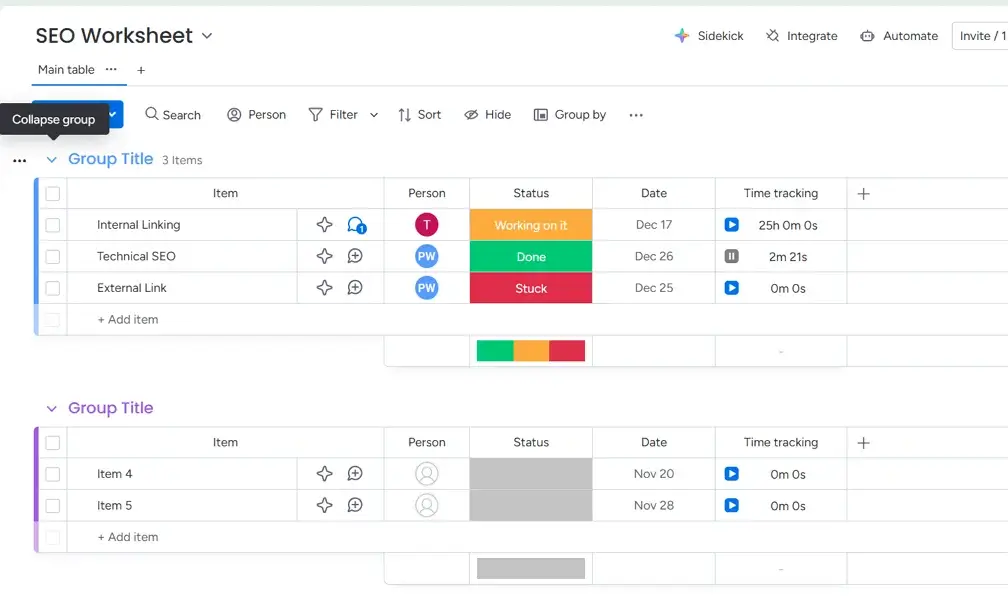
Once enabled, the feature automatically records time spent and stores entries within each item/task. You can then export this data to an Excel sheet for easier monitoring. This makes it easy to analyze work patterns, break down hours by assignee, and track billable versus non-billable work. This gives project managers visibility into workload distribution, and provides freelancers/agencies an overview of project hours.
However, one drawback of this feature is that it is only available on Pro and Enterprise plans. Moreover, manual adjustments can feel tedious for users who forget to start or stop the timer.
The time tracker also lacks advanced features, like automated screenshots/screengrabs, which are available on most third-party time tracking apps, like Clockify. That can be a problem for teams that require visual proof of completed tasks or prefer to have insights into how time is actually spent on projects.
4. monday.com Automation: Optimize Workflows for Maximum Efficiency
monday.com lets you automate actions like updating statuses, assigning owners, moving items between groups, or sending notifications. The automation builder works similarly to an “if-this-then-that” engine. You choose a trigger, define the action, and let monday.com handle the busywork behind the scenes.
For instance, a software development team can create an automation wherein it creates a new “Code Review” item and assigns it to the team’s reviewer when a developer marks a task as “Ready for Review.”
In case you don’t have time to program these automations, monday.com also has dozens of prebuilt automation recipes covering everyday needs across project management, marketing, sales, and operations. These ready-made options make it easy for most teams to get started without building anything from scratch.
However, if your workflow requires something more specific, you can customize your own automation using the same simple trigger-and-action logic.
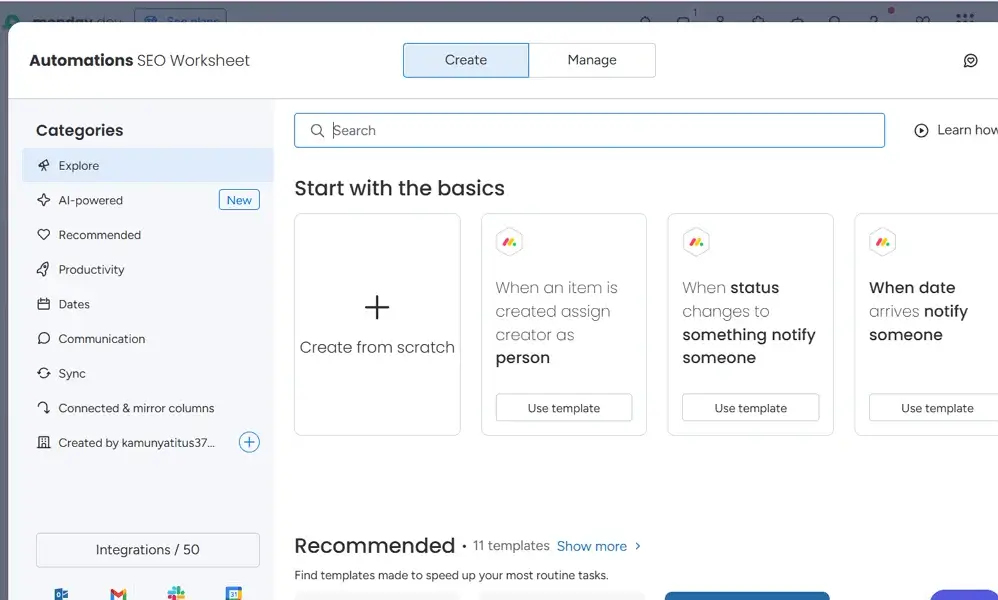
That said, custom automations are powerful, but they can be harder to configure for first-time users. Moreover, monday.com offers many action types, and choosing the right combination can feel overwhelming until you’ve explored the tool. It’s also worth noting that automations are only available on higher-tier plans.
5. monday.com AI Tools: Eliminate Routine Tasks; Boost Productivity
monday.com’s AI tools bring intelligent assistance directly into your workflows. This helps teams speed up routine tasks and reduce manual effort, such as searching for documents, comments, or links. It works within items, boards, and docs, allowing users to generate text, summarize updates, create task outlines, and even suggest automations via natural language prompts.
As of this writing, monday.com has three core AI-powered agents — monday magic, monday vibe, and monday sidekick.
AI Sidekick functions like a built-in productivity assistant. You can ask it to draft project briefs, rewrite updates, or convert meeting notes into structured action lists. I tested it on brainstorming and generating descriptions for my tasks, and loved the outputs.
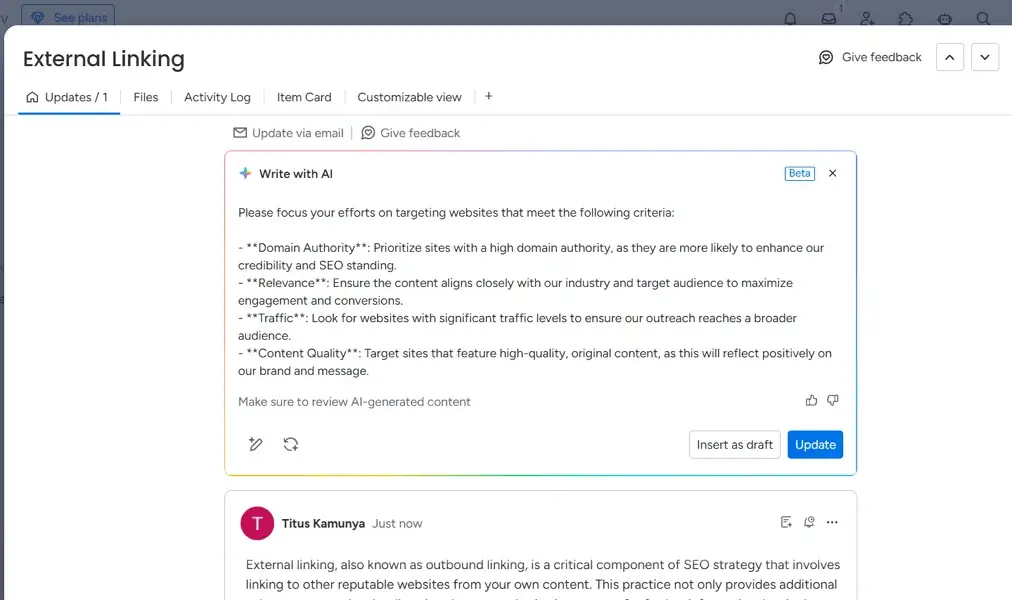
However, AI Sidekick isn’t without limits. First, its suggestions work best when the underlying task information is clear. Also, it may generate generic output if prompts lack context. Lastly, because AI usage is tied to credits, heavy users may need a higher-tier plan to take full advantage of the tool.
Beyond AI Sidekick, monday magic transforms a simple prompt into a ready-to-use, customized work solution. This means it can generate boards and workflows automatically. Meanwhile, monday vibe lets users create custom business applications using natural language prompts.
6. monday.com Reporting and Analytics: Take the Guesswork Out of Project Data
monday.com’s reporting and analytics tools give teams clear visibility into progress, workloads, and performance trends across all active projects. With these at your disposal, you can visualize key metrics using dashboards, chart widgets, and board-level analytics without relying on Google Sheets, Excel, or external reporting tools.
The reporting tools work by pulling data directly from the boards you connect to a dashboard. From there, it can display information through widgets such as charts, batteries, workload overviews, timelines, numbers, counters, and goal tracking. For instance, during testing, I pulled charts and battery reports to gain real-time insights into project progress.
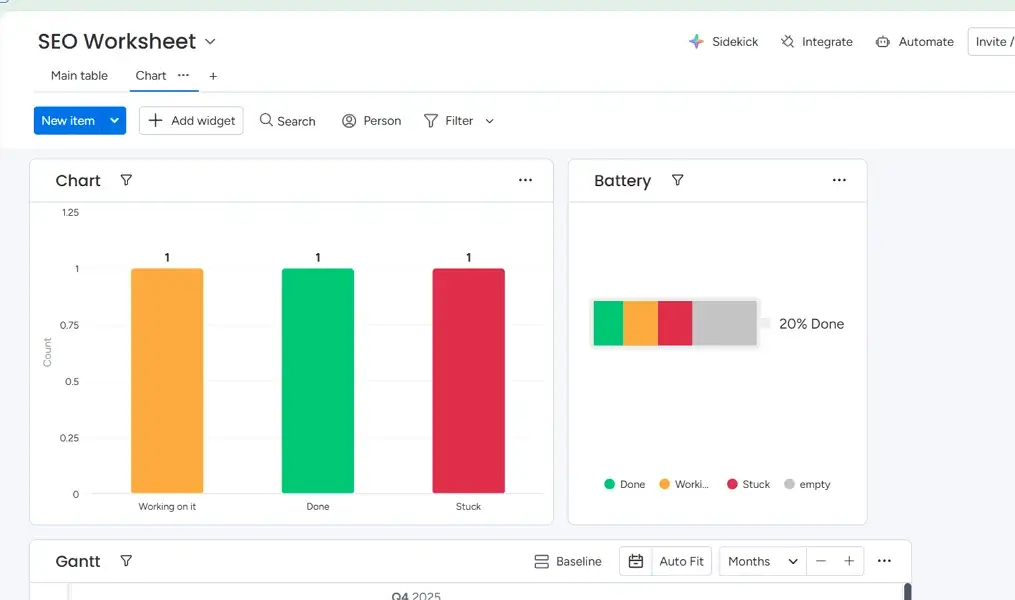
However, these dashboards can become cluttered if too many widgets are added without a clear structure. Also, for teams managing extremely large datasets, performance may slow down when multiple boards feed into a single dashboard.
7. monday.com Team Collaboration Features: Keep Your Team in the Loop
monday.com’s collaboration tools make it easier for distributed teams to stay aligned without relying on long email threads or scattered chat messages. Every task includes an updates section where teammates can comment, share files, tag colleagues, and record decisions. This keeps project communication tied directly to the work it relates to.
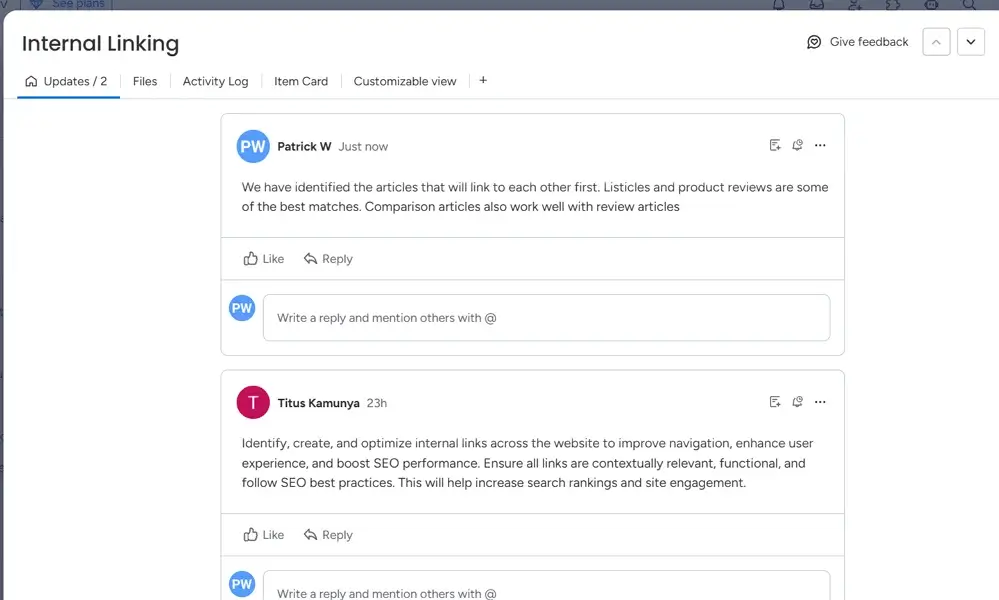
The platform also supports real-time collaboration across boards and documents. Users can co-edit monday.com docs, embed boards inside documents, and sync task updates instantly. For hybrid or remote teams, this means fewer status meetings and a clearer record of who changed what. Notifications and mentions also ensure contributors are alerted when something requires their attention.
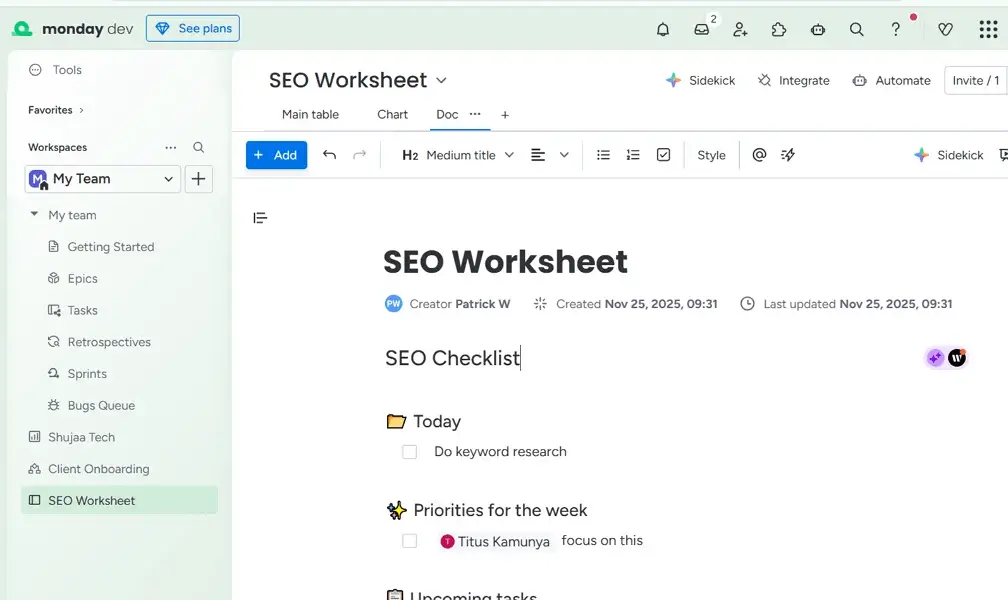
However, monday.com’s collaboration features aren’t perfect—update threads can become lengthy as projects progress. Consequently, this can lead to oversights, especially if you have yet to customize your notifications settings.
Also, monday Docs lacks some advanced formatting and versioning features found in dedicated documentation and collaboration tools like Notion. If you want to learn more about this platform, you can check out our guide on how to use Notion.
8. monday.com Vertical Solutions: Tailored Tools for CRM, Dev, and More
monday.com’s vertical solutions transform the platform from a general project management software into industry-specific work tools. Instead of building everything from scratch, teams can start with dedicated products like monday CRM, monday Dev, Service, or Campaigns. Each is designed with features that match the needs of those workflows.
These products offer specialized templates, dashboards, automations, and views on top of the monday.com core system. For example, monday CRM includes deal pipelines, lead management boards, and customizable dashboards. Meanwhile, monday Dev focuses on sprint planning, bug tracking, and release workflows. The structure remains familiar, but the tools become tailored for the context.
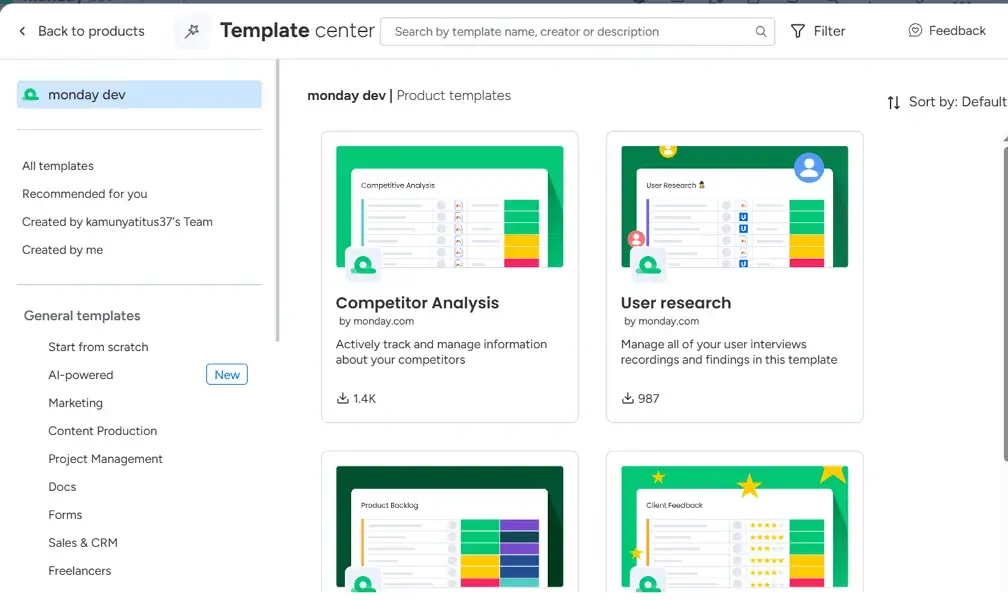
While these are great for building workspaces aligned to your workflows, keep in mind that vertical solutions have some limitations. Particularly, more advanced features, such as deep sales forecasting or development-specific integrations, may not be as comprehensive as those in specialized enterprise tools like Salesforce.
monday.com Pricing
monday.com offers tiered, per-seat pricing. There’s a free plan to get you started. However, when you’re ready for more power and customization, monday.com provides four paid plans: Basic, Standard, Pro, and Enterprise (learn more in our detailed monday.com pricing guide). Let’s break down what each plan offers.
monday.com Free Plan
monday.com has a free version, but it’s not that generous. First, it only comes with 500 MB of storage, 1000 items/ tasks, and support for up to 2 users, 3 boards, and 3 docs. It is great for individuals or collaborators who want to keep track of their work, but it may be too restrictive even for small teams.
monday.com Basic Plan
Basic plan costs $9 per seat/month (billed annually) with a minimum of 3 seats. This plan builds on the free plan, eliminating the seat limit, introducing unlimited free viewers, and increasing storage to 5GB. It is ideal for small teams that have outgrown the free plan.
monday.com Standard Plan
Standard plan costs $12 per seat/month (billed annually) with a minimum of 3 seats. This plan unlocks Timeline & Gantt views, Calendar view, guest access, automations (up to 250 actions per month, and integrations (up to 250 actions per month).
Also, dashboards in this plan can combine data from up to 5 boards, giving better visibility across projects. This makes Standard a strong pick for growing teams that need both automation and richer visualization.
monday.com Pro Plan
Pro plan costs $19/user/month (billed annually, with a minimum of 3 seats). This tier offers private boards, time tracking, a formula column, chart views, and up to 25,000 automation and integration actions per month. Also, Dashboards can combine data from up to 20 boards for deeper reporting and cross-project insights.
The Pro plan is ideal for medium to large enterprises that want to streamline complex workflows at scale.
monday.com Enterprise Plan
Enterprise plan is for large teams with advanced needs. It offers everything you get on the Pro plan plus resource and portfolio management, enterprise-grade security, dashboards that combine up to 50 boards, enterprise support, multi-level permissions, and more.
monday.com Integrations
monday.com supports more than 200 native integrations. This means teams have plenty of ways to connect the platform to the tools they already rely on. While its native catalog isn’t as large as some competitors, monday.com includes integrations with the most commonly used business apps, such as:
- Microsoft Teams
- Slack
- Google Workspace
- Zoom
- GitHub
Also, users can import data from platforms like Trello, Asana, Jira, or even spreadsheets to monday.com. The platform also offers a well-documented API that enables developers to build custom apps or automate workflows. Additionally, you can access more apps through integration platforms like Make.com and Zapier.
monday.com Security and Privacy
monday.com has one of the best security and privacy features among the many project management platforms. Also, there haven’t been any reported data breaches that have exposed customer data to external threats. Some of its security features include:
| Security and Privacy | monday.com features |
| Data Encryption | Uses TLS 1.3 (minimum TLS 1.2) for data in transit and AES-256 for data at rest |
| Single Sign-On (SSO) | Supports SAML SSO for Enterprise, and Google SSO for Pro & Enterprise |
| Multi-factor Authentication | Yes. Through an authenticator app or messaging |
| GDRP Compliance | Yes |
| HIPAA Compliance | Yes (Enterprise plan only) |
| Certifications/Standards | ISO 27001, ISO 27017, ISO 27018, ISO 27032, ISO 27701, GDPR, SOC 1 Type II, SOC 2 Type II, SOC 3, CCPA |
| Admin Controls | Role-based access, least-privilege principles |
| Cloud Provider | Amazon Web Services in EU, US, or AUS regions |
monday.com’s security and privacy features are pretty solid with a 911/950 UpGuard rating. First, it uses AES 256 encryption for data at rest and TLS for data in transit. Also, two-factor authentication allows teams to secure their monday.com apps and accounts and prevent unauthorized logins.
Lastly, the certifications ensure that this project management software processes data in accordance with global standards.
monday.com Customer Support Options
monday.com offers a learning platform called monday Academy. It includes structured courses, video tutorials, guided walkthroughs, and skill-based learning paths designed to help users get productive quickly. monday.com also offers live webinars and workshops led by product experts, which are refreshed regularly as new features roll out.
Additionally, the platform has a Resource Center where users can access the knowledge base with frequently asked questions. You just need to type your query into the search bar, and the system will show suggestions you can explore.
Also, monday.com provides live support via a chatbot on the paid plans. After testing it, I was pretty impressed by how it solved general queries — it answered quickly and completely, making it easy to resolve concerns. I also requested to be connected to a live agent, and I was transferred within 3 minutes.
If you prefer getting VIP treatment when it comes to customer support, monday.com also offers a dedicated customer success manager to Enterprise subscribers.
Wrapping Up: Is monday.com worth it?
While monday.com positions itself as a flexible “Work OS” that can power any workflow, it doesn’t fully replace every specialized tool a business might rely on. The platform has made impressive strides with its product-specific solutions, such as monday Dev and monday CRM, which demonstrate a real effort to become a true all-in-one system.
However, by trying to accommodate so many use cases, it often lacks depth while chasing breadth. For instance, its CRM capabilities, while suitable for small and medium-sized enterprises, may feel limited compared to dedicated tools like Salesforce.
That said, monday.com remains one of the most powerful and user-friendly project management platforms available today. Its customization options, automation capabilities, and visual dashboards make it especially appealing for teams that want software that adapts to their processes.
We recommend monday.com for teams that want a scalable, intuitive system to manage solo or multiple projects and tasks, and to collaborate within a single platform. If you’re curious about how it fits your needs, start a 14-day trial today on any of its products and get a feel for its premium features.
FAQs: monday.com Review
What exactly does monday.com do?
monday.com is a work management platform that helps teams plan, track, and collaborate on projects using customizable boards with drag-and-drop functionality. It also provides a centralized project dashboard for real-time visibility across tasks and workflows.
What is monday.com best for?
monday.com is best for teams that need flexible project tracking, streamlined collaboration, and efficient resource management. Its visual tools and automation features make it ideal for managing multi-step projects across different departments.
Is monday.com difficult to learn?
Yes, to some extent. monday.com has a steep learning curve when compared to platforms like Trello. The high level of customization and the depth of features mean more learning time is required to master its products.