






Asana is a popular project management tool for good reason — it has an intuitive interface and strong task management capabilities, but it is far from perfect. Its free plan only supports two users, and its tiered seat plans can push teams to pay for seats they don’t need. These barriers often prompt users to seek tools that offer similar features but with better cost-efficiency.
Luckily, there’s a wide range of Asana alternatives on the market. Several project management software platforms now offer more generous free plans, transparent pricing, richer automation, and improved reporting. Some even come with collaboration and resource management tools to give teams more control over their processes without adding complexity.
I tested dozens of options to help you find the best Asana alternative. In this guide, you’ll find options that outperform Asana in automation, pricing, ease of use, client collaboration, and specialized features. Keep reading to find your fit.
Key Takeaways: What is the best alternative to Asana?
- ClickUp is the Best Asana Alternative: This project management solution supports unlimited users on the free plan, offers unmatched flexibility, powerful views, and deep customization for any workflow. Create a free ClickUp account to get started.
- Trello is the Best Free Asana Alternative: Trello’s generous free plan and intuitive Kanban boards make it ideal for simple, visual task management. Join Trello for free and start organizing instantly.
- Zoho Projects is the Best Budget-friendly Alternative to Asana: It offers strong features, starting at $4/user/month. It is perfect for small teams that need structure and savings. Start a Zoho Projects free trial today.
Quick Comparison: Top 3 Asana Alternatives

Best for: All-in-one project and workflow management
- Free plan: Yes, with unlimited users and tasks
- Free trial: Yes, 14 days
- Pricing: Starting from $7/user/month

Best for: Visual-customizable project tracking
- Free plan: Yes, with only 2 users and up to 3 boards
- Free trial: Yes, 14 days
- Pricing: Starting from $9/user/month billed annually

Best for: Real-time collaboration and customizable workflows
- Free plan: Yes, with unlimited users
- Free trial: Yes, 14 days
- Pricing: Starting from $10/user/month
Our Pick: ClickUp is the best Asana alternative
ClickUp stands out as the best Asana alternative for teams that need the same powerful task and project management features Asana offers, without paying a premium. Built as an all-in-one work management platform, it provides a broad set of tools and a highly flexible interface that minimizes the need to switch between multiple applications.
Its flexible, budget-friendly plans give teams more control, scalability, and value for every dollar spent. I love that ClickUp doesn’t impose a minimum seat requirement or use a tiered pricing that makes Asana pricey. Instead, it has a simple, per-user pricing that lets businesses purchase the seats they need. This makes it appealing to fast-growing and cost-conscious teams that want to scale without paying for unused licenses.
ClickUp also offers advanced automation triggers, customizable workflows, and a wide range of integrations — all of which contribute to its status as one of the best project management products currently on the market.
My only issue with ClickUp is that by attempting to do it all, it ends up spreading itself too thin in some areas. For example, its advanced features like Docs, Whiteboards, and time tracking are useful but not as polished or intuitive as dedicated tools built specifically for those purposes.
Top 10 Asana Alternatives For More Seamless Project Management
If Asana doesn’t quite fit your workflows, worry not, because I’ve got you covered. I’ve tested various project management software tools across different use cases to narrow down the top 10 best Asana alternatives. Each option was selected for its ability to address common Asana limitations while offering distinct strengths in flexibility, features, or pricing.
Best for: All-in-one project and workflow management
- Free plan: Yes, with unlimited users and tasks
- Free trial: Yes, 14 days, No credit card required.
- Pricing: Starting from $7/user/month
Pros
- Extremely customizable views
- A generous free plan available with key features like unlimited users and tasks
- Built-in docs, whiteboards, and real-time chat for collaboration
Cons
- Steep learning curve due to many features
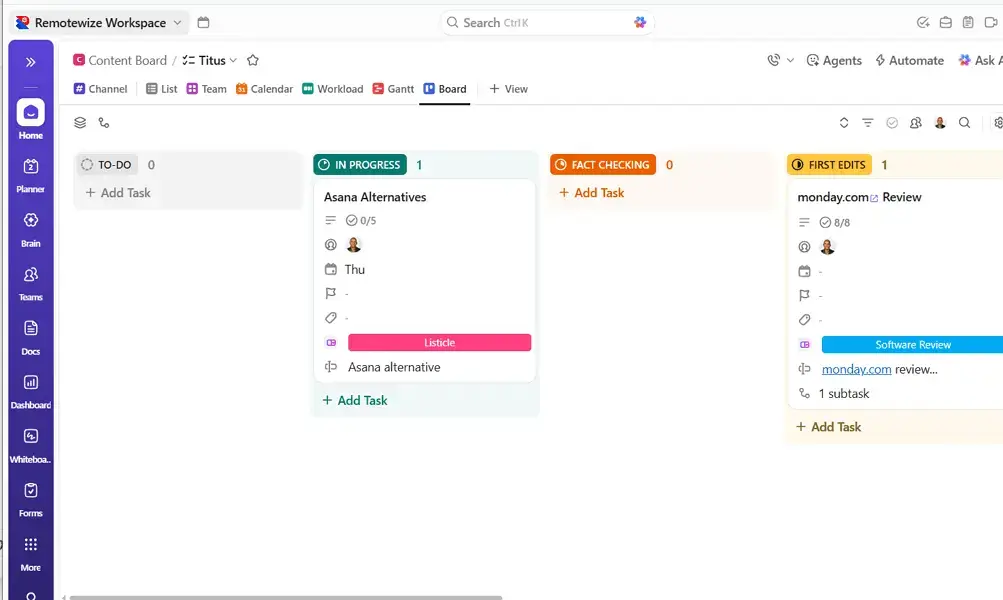
ClickUp is a project management software that claims to be the “one app to replace them all.” This is why it’s considered a good Asana alternative for users seeking an all-in-one collaboration tool. With it, users gain access to features such as real-time chat for channels and direct messages, interactive whiteboards, as well as a built-in document creator.
Aside from the abovementioned, ClickUp is known for its highly customizable views and workflows. Teams can switch between list, board, calendar, and Gantt views, giving every project a structure that fits its complexity. This helps teams manage everything from engineering sprints to content calendars without feeling boxed into Asana’s linear, task-based approach.
Learn more about how this project management tool works in our ClickUp review article.

Although powerful, ClickUp’s biggest limitation is its learning curve. Because this task management tool is highly configurable, it will take more time to set up workflows, dashboards, and automations. For smaller teams and users seeking a more plug-and-play experience, this initial complexity can slow implementation.
Other Things I Liked About ClickUp
- Project Templates: Has hundreds of templates from marketing, development, and sales. This saves teams time, as they don’t have to create everything from scratch.
- ClickUp Brain: This is a generative AI assistant that pulls insights from dashboards, tasks, and docs. Teams can use ClickUp Brain to summarize notes, create content, or even generate reports.
- Custom Dashboards: Users can create real-time dashboards across multiple spaces. This eases reporting and is ideal for visual teams.
ClickUp’s Free Forever plan includes unlimited users, tasks, and core views, making it one of the most generous free tiers available. Paid plans start at $7 per user per month when billed annually, unlocking key features such as unlimited storage, advanced permissions, and automations.
For a detailed breakdown of each tier, see our ClickUp pricing guide, or create a free ClickUp account to get started instantly.
Best for: Visual-customizable project tracking
- Free plan: Yes, with only 2 users and up to 3 boards
- Free trial: Yes, 14 days, No credit card required.
- Pricing: Starting from $9/user/month billed annually
Pros
- Highly flexible to suit varying workflows
- Strong automation capabilities
- Strong reporting capabilities
Cons:
- Free plan limited to 2 users only
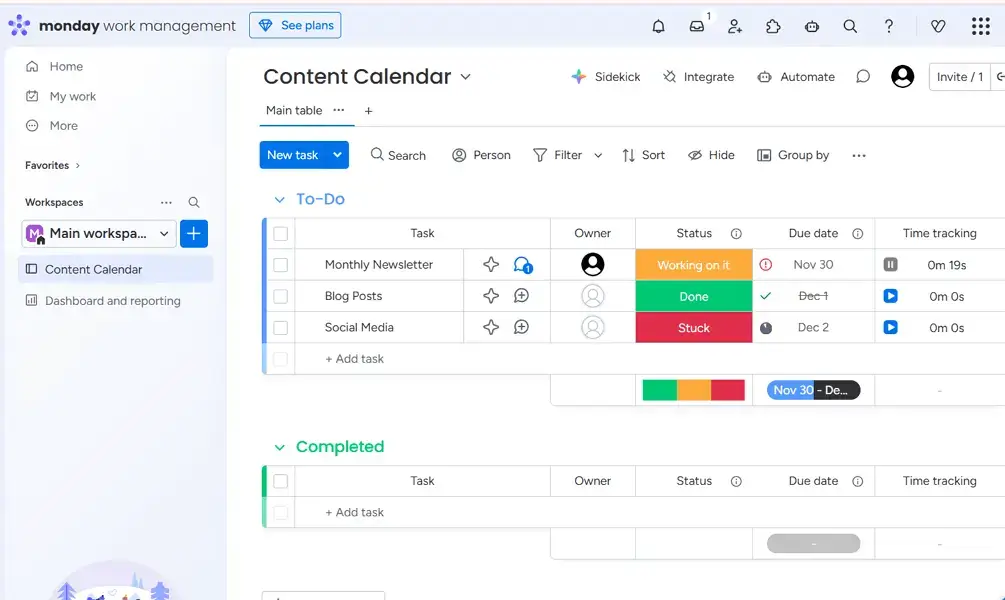
monday.com is a cloud-based work operating system (Work OS) that allows teams and organizations to create, track, and manage projects. It is visual and offers fully customizable boards that adapt to any workflow. This flexibility gives small teams more freedom to structure their processes in ways that Asana’s more rigid task format doesn’t always allow.
monday.com also provides powerful no-code automations. This enables teams to automate status changes, notifications, and recurring tasks, to reduce manual work and maintain consistent operations. During testing, these automations significantly sped up routine workflows. To learn more about how it works in practice, see our detailed monday.com review.

However, monday.com’s free plan is very limited and often restrictive for growing teams. It can accommodate only two users and three boards, which can push most teams to upgrade quickly to access more features and increase user capacity.
Other Things I Liked About monday.com
- Work OS: monday.com has different products for product managers, software developers, and even salespeople. This makes it easy to provide specialized tools under one roof.
- Dashboards: Pull insights from multiple boards into a single view. This makes it easy to track project progress, create reports, and manage workflows.
- Native time-tracking: Add a time-tracking column to your boards and track time on every task. This allows users to track time without using extensions.
monday.com provides a free plan for up to two users, which is best for testing basic features before committing. The 14-day free trial lets you explore advanced tools like automations, timeline views, and dashboards. Paid plans start at $9 per user monthly when billed annually. Learn more about these plans through our monday.com pricing guide.
Start your monday.com free trial today, and test its premium project management experience at no cost.
Best for: Real-time collaboration and customizable workflows
- Free plan: Yes, with unlimited users
- Free trial: Yes, 14 days
- Pricing: Starting from $10/user/month

Pros
- Excellent real-time collaboration
- Multiple dashboard views to suit various workflows
- Different tools for different needs
Cons
- It can feel overwhelming for small teams
Wrike is an AI-powered enterprise work management tool. It is a good alternative to Asana as you can configure its workspace to match your team’s workflow. You can customize project folders, task types, statuses, and automation rules, shaping the platform around your processes rather than adapting to rigid defaults. This makes Wrike ideal for multi-team environments.
Wrike also delivers powerful collaboration tools that keep teams aligned in real time. Users can co-edit tasks, share live updates, comment directly on work, and track changes instantly. Consequently, this reduces communication delays, allows you to work faster, and enables your team to be more coordinated.
However, Wrike also has its drawbacks, and the biggest one is its complexity. With so many customization layers, new teams may find the interface overwhelming, and new users may need time to learn how to use it.
Other Things I Liked About Wrike
- Multiple Templates: You can use Wrike in legal, marketing, sales, HR, or IT departments. Wrike provides project templates for different use cases to help you get started fast.
- Wrike AI: Speed up repetitive work like writing task descriptions with Wrike AI. This means getting more time to handle the core business.
- Scalable: Wrike scales and adjusts seamlessly to your needs. This makes it suitable for growing teams.
Wrike’s free plan supports unlimited users, basic task management, and simple collaboration, making it suitable for small teams getting started. Paid plans begin at $10 per user monthly when billed annually, unlocking dashboards, Gantt charts, resource management, and advanced automation and task management features. Start a 14-day free trial to explore Wrike’s capabilities.

Best for: Those already in the Zoho ecosystem
- Free plan: Yes, with up to 3 projects
- Free trial: Yes, 15 days
- Pricing: Starting from $4/user/month billed annually
Pros
- Deep integration with Zoho tools
- Excellent value for money
- Powerful automation to save time
Cons
- Steep learning curve due to its extensive feature set
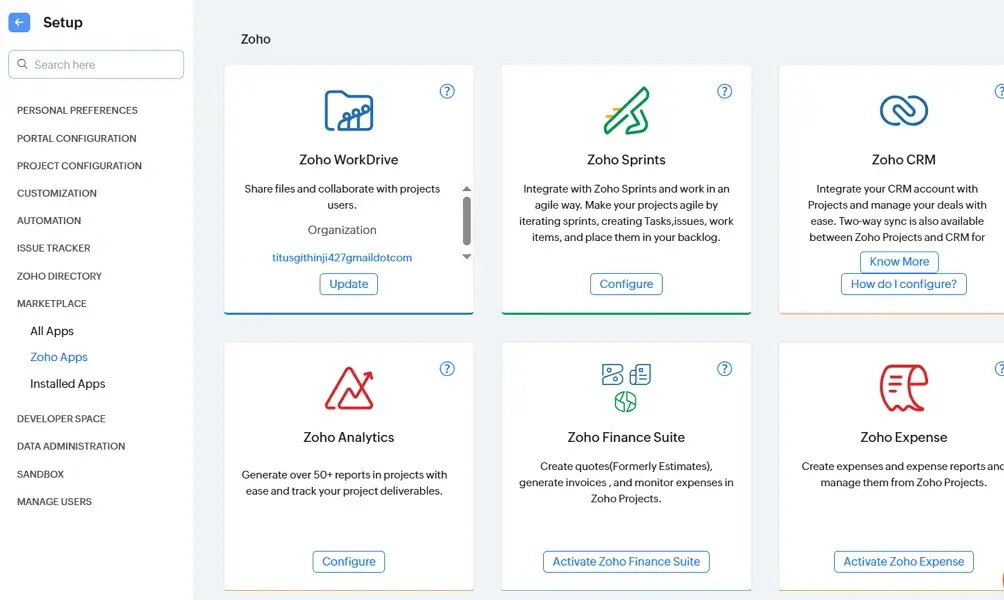
Zoho Projects stands out as one of the best Asana alternatives thanks to its seamless integration with the broader Zoho ecosystem. You can plug in tools like Zoho Cliq and Zoho Meeting into Zoho Projects, letting teams message, video-call, and share updates without switching between apps. This connected workflow makes Zoho Projects especially appealing for teams already using Zoho’s suite.
Zoho Projects is also big on automations. This enables teams to configure rules that trigger task updates, notifications, and status changes based on activity, ensuring projects move forward without manual oversight. As a result, small teams can maintain momentum on their tasks without being bogged down by routine processes.
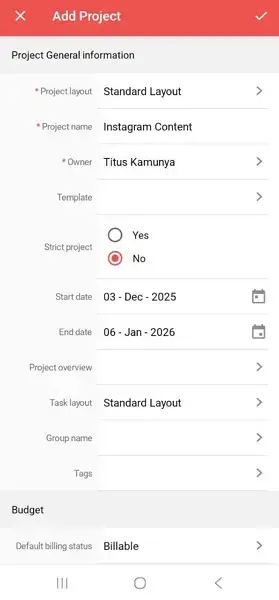
One downside, however, is that Zoho Projects’ free plan is restrictive, offering only up to 3 projects. This can quickly become a bottleneck for teams managing multiple pipelines, forcing them to upgrade sooner than expected if they want room to scale or unlock more robust project management capabilities.
Other Things I Liked About Zoho Projects
- Built-in time tracking: Teams can log hours directly inside tasks, simplifying billing and productivity tracking.
- Gantt charts and dependencies: Visual timelines help teams spot bottlenecks early, track tasks, and plan long-term work more effectively.
- Strong search: Zoho Projects has a powerful search function that works across the entire workspace. This makes it easy to track files, conversations, and tasks in a workspace.
Zoho Projects’ free plan suits small teams, as it lets them test its basic features. Paid plans start at around $4/user/month when billed annually, unlocking unlimited projects, automation, integrations, and advanced views. Start a free trial to experience Zoho Projects for yourself.

Best for: Users already in the Microsoft Ecosystem
- Free plan: Yes, but only available to Microsoft 365 users
- Free trial: Yes, 30 days
- Pricing: Starting from $10/user/month
Pros
- Unified views and hybrid workflows
- Deep integration with Microsoft 365 apps
- AI-powered planning to increase efficiency
Cons
- Not available for users without official company or school emails
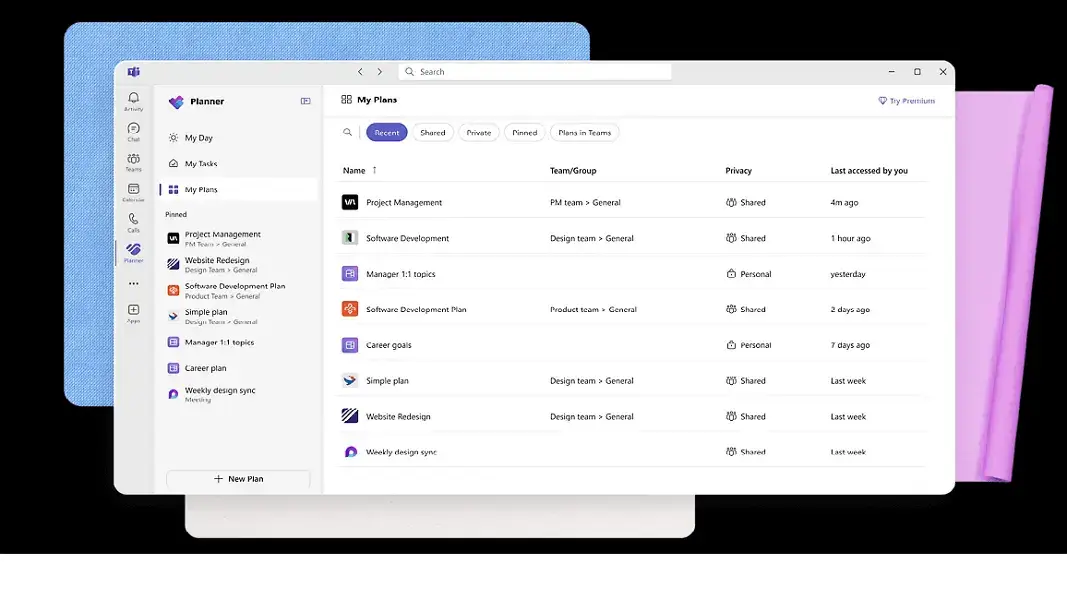
Microsoft Planner is a project management tool designed for those already in the Microsoft ecosystem. It combines list, board, and calendar views, so teams can switch perspectives without losing task context. With it, you can map dependencies, visualize schedules, and toggle views to match planning or execution modes. This helps teams move seamlessly from high-level roadmaps to detailed task work.
Planner integrates tightly with Microsoft Loop, Teams, and Outlook. The seamless integration allows tasks, documents, chats, and calendar events to flow together effectively. You can turn emails into tasks, embed Planner boards inside Loop pages, and sync project plans with Teams discussions. In turn, this unified workflow centralizes collaboration.
However, Planner is only available for users with enterprise or school accounts. This means you can’t use personal emails like Gmail or Outlook to subscribe.
Other Things I Liked About Microsoft Planner
- AI-powered Assistance: Planner’s AI analyzes meeting notes and project details to automatically create tasks and schedules. This reduces manual setup and speeds up planning for busy teams.
- Project templates: Planner offers ready-made templates for common workflows like campaigns, events, and product plans. They give teams a fast, structured starting point without requiring them to design projects from scratch.
- Security and data privacy: Built on Microsoft 365, Planner uses enterprise-grade security, encryption, and compliance controls. These robust security measures keep sensitive project data protected across devices and team members.
Planner offers a free plan to users who are already subscribed to Microsoft 365 plans. Its individual paid plans start from 10/user/month, paid yearly. Start a 30-day trial of the Planner Plan 1, and experience premium product management at no cost.

Best for: Flexible database-driven project management
- Free plan: Yes, with unlimited bases and up to 5 editors
- Free trial: Yes, 14 days
- Pricing: Starting from $20/user/month, billed annually
Pros
- Highly flexible structure combining database capabilities and spreadsheets
- Built-in automations to reduce manual workloads
- Multiple view types for varying workflows
Cons
- May feel less structured in project management
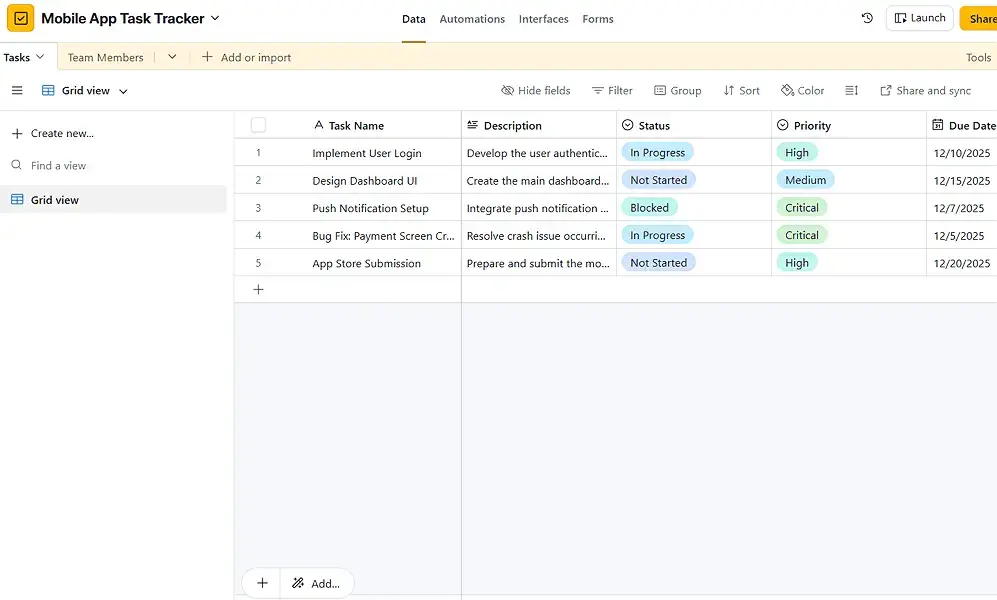
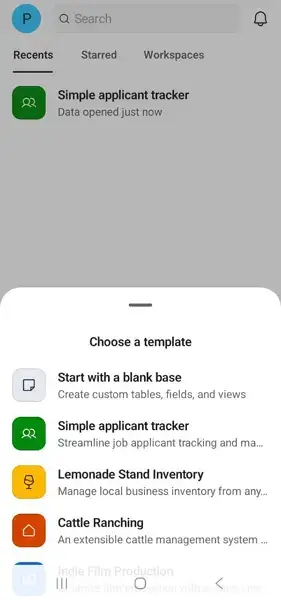
Airtable is a cloud-based AI-first platform for creating and managing relational databases. Its hybrid spreadsheet-database model lets users build flexible “bases” (like databases) to model tasks, assets, resources, timelines, and any custom data. This allows teams to tailor Airtable to their exact workflow, be it content calendars, product roadmaps, or simple task tracking.
Moreover, Airtable offers powerful built-in automation that lets you set up triggers and actions based on your workflow needs. For instance, when a task status changes, you can configure it to send a notification, update another record, or create follow-up tasks. This saves time, reduces repetitive admin tasks, and helps teams scale their processes.
However, this level of flexibility comes with its own set of challenges. Because Airtable is so open-ended, it can feel less structured than tools built around dedicated project workflows. Teams often need to invest additional time configuring bases, views, and automations to impose structure, which can be challenging for users who prefer guided setups or out-of-the-box project management frameworks.
Other Things I Liked About Airtable
- Variety of Templates: Airtable offers a variety of project templates across content planning, product workflows, software development, and more. This allows teams to launch structured bases fast.
- Relational Tables/Linked Records: Airtable’s relational database structure lets teams link records across tables. For instance, connecting tasks to projects or assets to team members. This prevents duplicate data and makes workflows more organized.
- Collaboration Features: Teams can comment on records, tag teammates, share bases, and collaborate in real time. Multiple views, like grid, Kanban, and calendar, support different working styles within the same project.
Airtable’s free plan is quite generous, with 500 AI credits per editor each month, unlimited bases, up to 5 editors, an interface designer, and 100 automation runs. For teams that need more automation runs and advanced views, they can subscribe to paid plans starting from $20 per user/month, billed annually.
Sign up for Airtable now and start building your custom workflow immediately.

Best for: Simple, visual Kanban-style task management
- Free plan: Yes, with unlimited cards and up to 10 boards per workspace
- Free trial: Yes, 14 days
- Pricing: Starting from $5/user/month
Pros
- Generous free plan
- Highly visual
- Easy to get started and use
Cons
- Limited depth for complex projects
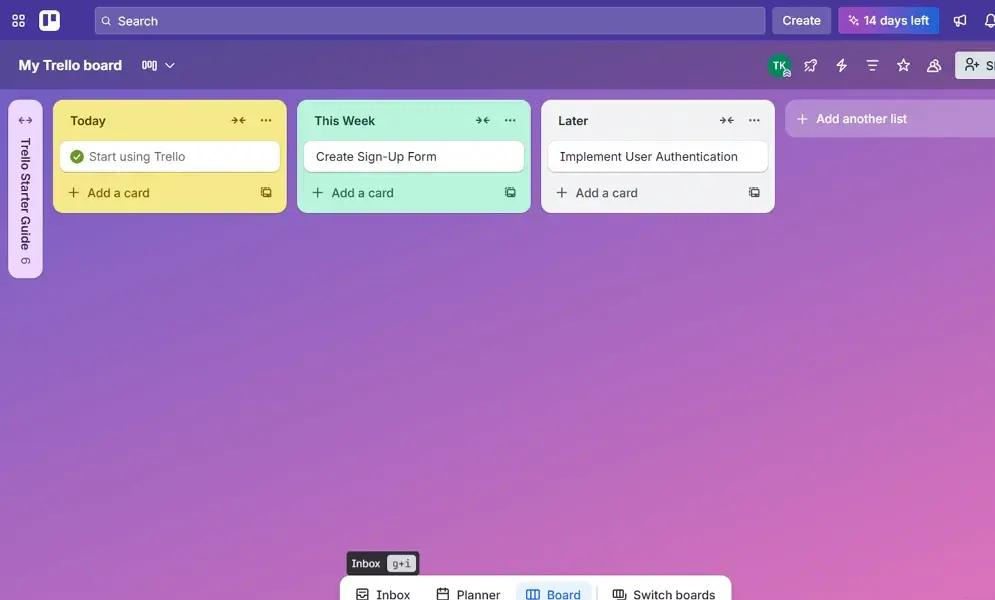
Trello is a visual project management platform developed by Atlassian, which is loved for its clean, Kanban-first layout. In this software, tasks are displayed on visual boards, making it easy to drag items across pipeline stages and track progress instantly. This simplicity reduces onboarding time significantly and lets teams organize projects in minutes.
Trello also supports deep customization through Power-Ups, which add features like calendars, custom fields, automation rules, and integrations. This modular approach allows teams to enhance functionality gradually, rather than committing upfront to a complex, feature-heavy platform.
You can learn more about how these two tools compare in our Asana vs Trello comparison guide.
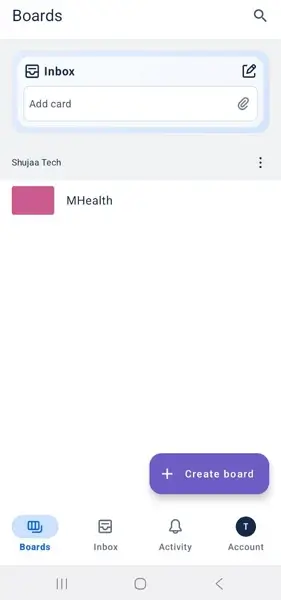
Like other work management platforms, Trello also has its limitations. In this case, the tradeoff for its simplicity is the lack of advanced project controls out of the box. Project management features such as workload management, dependencies, and resource planning require paid upgrades.
Other Things I Liked About Trello
- Team Collaboration Features: Teams can comment on cards, mention teammates, and attach files. This keeps communication centralized.
- Automation with Butler: Teams can use Butler to handle repetitive tasks such as moving cards and assigning deadlines. This reduces manual intervention, meaning more time for core business.
- Offline-ready Mobile Support: Trello’s iOS and Android apps let you view boards, create cards, move tasks, and add descriptions/labels/checklists, even when you’re offline. Once you reconnect, everything automatically syncs, so you don’t lose work.
Trello has one of the most generous free plans among the project management software options we’ve reviewed. It supports unlimited cards, unlimited Power-Ups per board, and up to 10 boards per workspace. Paid plans start at $5 per user monthly when billed annually, unlocking unlimited boards, advanced automation, and custom fields.
Start a Trello free trial today and enjoy premium features at no cost.

Best for: Centralized team communication and project management
- Free plan: Yes,
- Free trial: Yes, for 30 days
- Pricing: Starting from $15/user/month
Pros
- Centralized communication
- Flat-rate pricing available for large teams
- Simple structure suitable for non-technical teams
Cons
- No advanced reporting and project management features
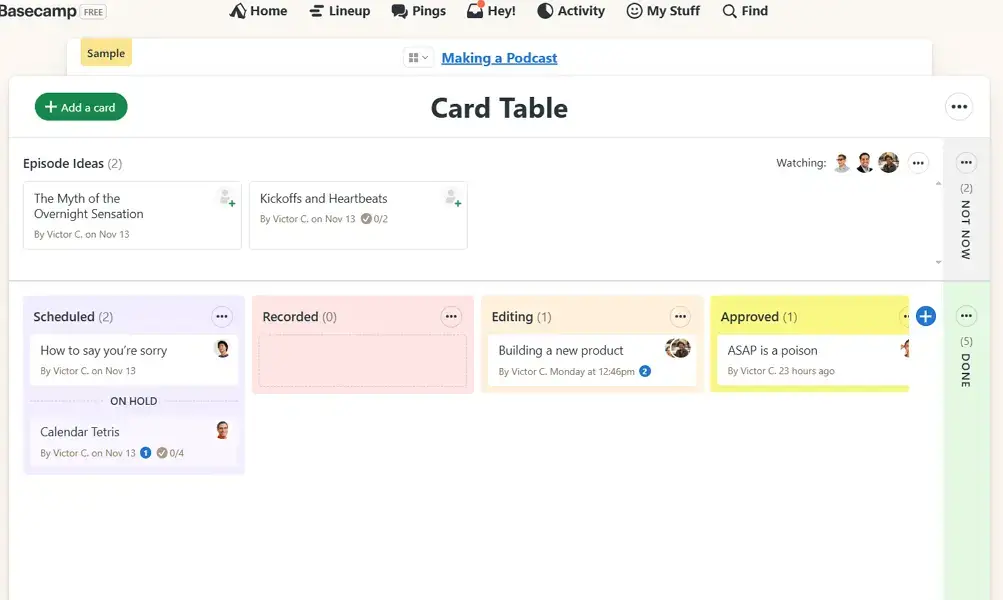
Basecamp is a simple, all-in-one workspace that keeps everything in one place. Each project contains to-dos, messages, schedules, docs, and group chat, reducing the need for multiple apps. This simplicity makes Basecamp appealing to teams that are overwhelmed by Asana’s layered views and more advanced project-management features.
Basecamp also emphasizes communication, offering built-in chat, message boards, and automatic check-ins to keep teams aligned without extra tools. This communication-first approach helps reduce scattered conversations and missed updates. Teams looking for an easy, conversational workflow often find Basecamp’s setup refreshingly straightforward.

Although Basecamp is simple and effective, it falls short in offering features like task dependencies, detailed reporting, and resource management. This can make it challenging for larger teams managing complex projects that require greater oversight and planning.
While its straightforward interface makes it easy to onboard and manage basic workflows, teams seeking deeper control over timelines, workloads, and performance metrics may find its functionality limiting in the long run.
Other Things I Liked About Basecamp
- Hill Charts: Basecamp’s unique progress visualization shows what’s planned versus what’s being executed, helping teams understand progress without traditional Gantt charts.
- Client access: Teams can invite clients to view updates, comment on work, and join discussions without exposing internal conversations.
- Notifications control: Tools like “Catch Up” and “Focus Mode” help users manage updates and minimize distractions, improving team productivity.
Basecamp offers a free plan that supports one project and provides 1GB of storage. Paid plans start from $15/user/month for the pay-per-user pricing model and $299/month billed annually on the fixed model. Start a Basecamp free trial today, and experience its all-in-one features without paying a dime.

Best for: Simple personal and team task management
- Free plan: Yes, with up to 5 personal projects
- Free trial: Yes, on select accounts
- Pricing: Starting from $4/user/month
Pros
- Clean, intuitive interface
- Strong reminders and alert features
- Project templates for easy setup
Cons
- Not suitable for managing complex projects
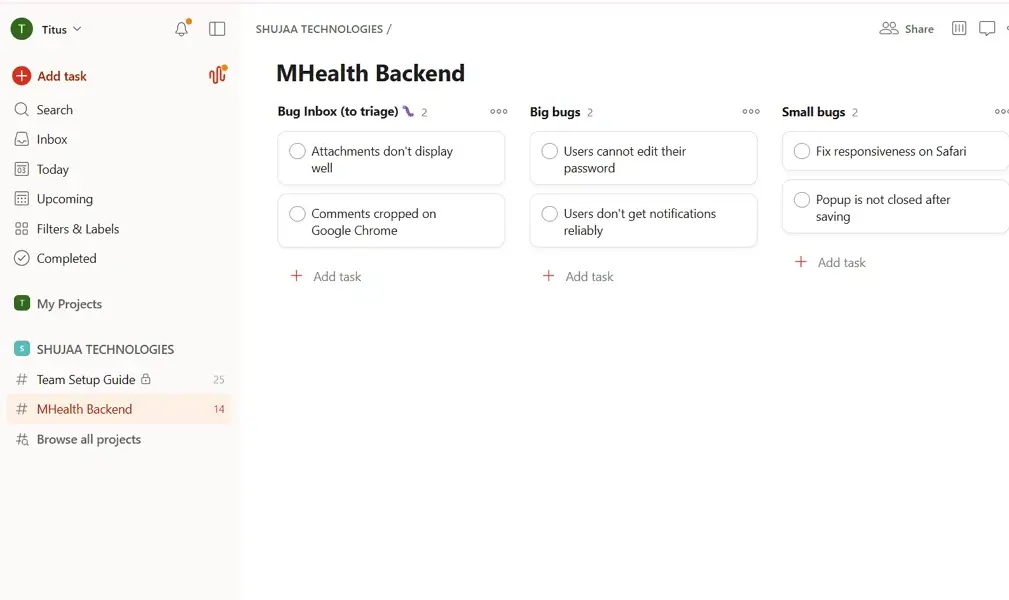
Todoist is a lightweight task management and to-do list app. It simplifies task management into a clean, distraction-free interface that helps individuals and small teams stay focused. Although not a comprehensive project management tool, its streamlined design makes daily planning easier and more intuitive, especially for users seeking less complexity.
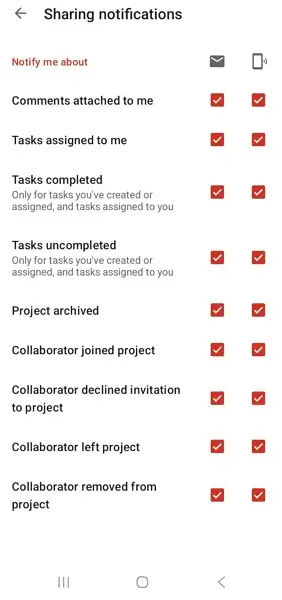
Todoist also stands out because its reminder and notification system keeps tasks from being forgotten. You can set due-date reminders, recurring alerts, and push notifications that sync across devices. This helps individuals and small teams maintain clarity and consistency, offering a simpler alternative to Asana’s more structured but heavier notification setup.
Similar to Trello and Basecamp, Todoist’s main limitation is its lack of depth. While excellent for personal productivity, it lacks advanced features like resource planning and multi-view dashboards. Teams dealing with more complex frameworks or requiring cross-project visibility may find it insufficient for day-to-day operations.
Other Things I Liked About Todoist
- Karma productivity tracking: Todoist’s Karma system tracks your daily actions, rewarding completed tasks and consistent habits with progress points. This encourages users to stay motivated.
- Location-based reminders: Todoist can trigger reminders when you arrive at or leave a specific location. For example, it can remind you of meetings when you arrive at work or to do laundry when you get home. This ensures tasks tied to physical locations occur at the right time.
- Color-coded labels: Users can tag tasks with color-coded labels to categorize priorities, contexts, or project areas. This makes scanning long task lists faster and helps users stay organized visually and mentally.
Todoist offers a free plan that supports up to 5 personal projects, three filter views, task reminders, and 1 week of activity history. Paid plans start at $4/user/month and add features like Task Assist and Calendar view. Create a free Todoist account today to start planning your personal tasks more effectively.
Best for: Structured and real-time tracking
- Free plan: No
- Free trial: Yes, 30 days
- Pricing: Starting from $14/user/month, billed annually
Pros
- Multiple project views for different work styles
- Strong planning tools
- Real-time dashboards to monitor project progress
Cons
- No free plan available
ProjectManager is a project management software designed for business excellence. It is known for its hybrid workflows, which let users switch between Gantt charts, Kanban boards, lists, and calendars, allowing each team to work in their preferred style. This flexibility supports structured planning, offering far more versatility than Asana’s limited multi-view options.
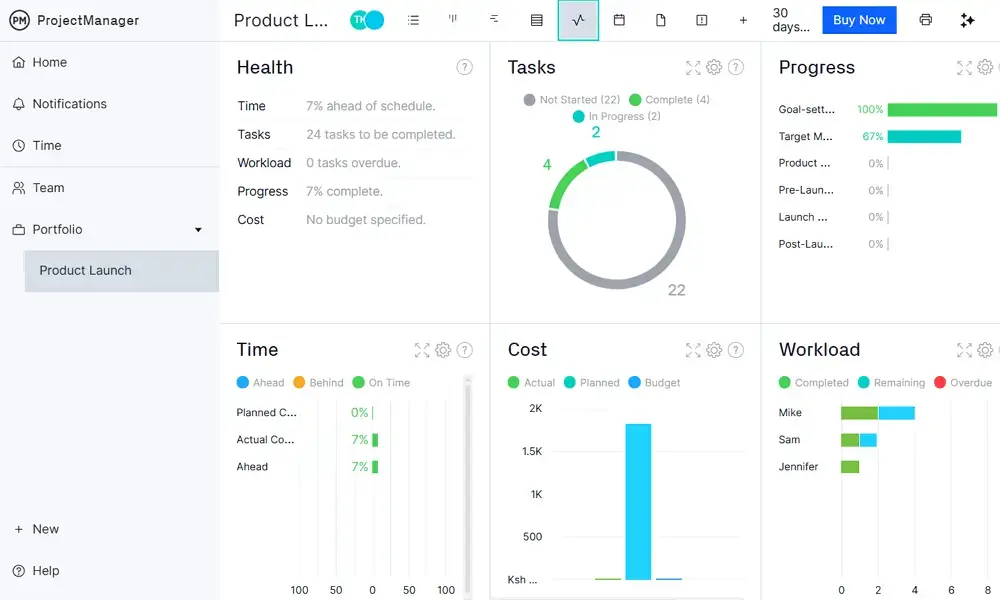
Its real-time dashboards give teams live visibility into workload, progress, and budget without running manual reports. Data updates instantly as tasks change, allowing project managers to spot delays or overruns early. These dashboards make ProjectManager ideal for teams that need continuous monitoring and accurate insights at a glance.
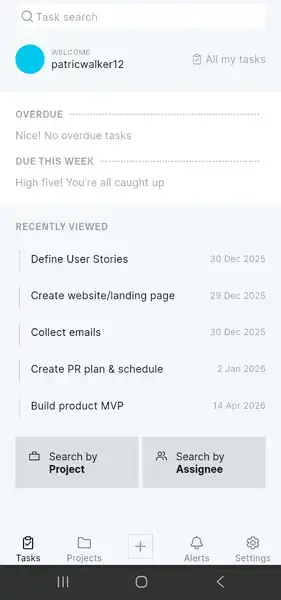
However, ProjectManager’s real-time tracking comes with complexity, and smaller teams may find its interface and setup more cumbersome than necessary. As a result, this can make onboarding more challenging and adoption slower. By contrast, larger teams may find ProjectManager’s depth beneficial for handling complex projects.
Other Things I Liked About ProjectManager
- Resource Management: ProjectManager lets project managers assign workloads, balance team capacity, and view utilization in real time. This prevents burnout and ensures tasks reach the right people at the right time.
- Portfolio Management: Allows users to oversee multiple projects from a single dashboard. This gives leaders and project managers a unified view of progress, risk, and performance across the organization.
- Automated Reporting: ProjectManager automatically generates project, task, and workload reports, saving teams hours of manual tracking and keeping stakeholders informed effortlessly.
ProjectManager doesn’t offer a free plan. However, it offers a generous 30-day free trial that unlocks all key features, allowing teams to test workflows before committing. Plans start at $14 per user per month on an annual subscription. Start your free trial to explore the platform firsthand.
How to Choose the Best Asana Alternative For Your Team
Choosing the right project management tool for your team isn’t just about picking the most popular option—it’s about finding a platform that reinforces your workflow and drives your day-to-day operations seamlessly.
To help you make an informed decision, I’ve narrowed down some of the steps you can take to evaluate each tool’s compatibility with your team:
- Identify your workflow requirements: Start by reviewing how your team currently collaborates and which integrated workflow partners you rely on. This will help filter out project management tools that won’t support your existing ecosystem.
- Define the features you need: Consider your team’s methodology—Scrum, Kanban, Lean, or Agile—and identify the specific features that support it. This ensures you choose a tool that aligns with your processes, rather than forcing your workflow to adapt to the software.
- Evaluate how each tool handles project timelines: Target popular project management tools that offer clear project timelines, Gantt charts, or roadmap views so your team can visualize dependencies and manage deadlines more effectively.
- Compare usability across multiple project management apps: Test 2 to 3 options with a real project to see how intuitive they feel, how quickly your team adapts, and whether the tool reduces friction rather than adding complexity to everyday work.
Wrapping Up: What’s the Best Asana Alternative?
ClickUp stands out as the strongest overall pick if you’re looking for an Asana alternative that offers more flexibility, better value, and a wider range of workflow tools. It is loved for its generous free plan, powerful customization, and built-in collaboration features. You can also scale from simple task lists to advanced workflows without paying for excess licenses.
If ClickUp doesn’t tick all the boxes, you still have plenty of alternatives. Trello remains the best option for users who want simple, visual task management with little to no learning curve and a generous free tier. Meanwhile, Zoho Projects is a top budget-friendly choice. It is ideal for teams that want deep ecosystem integrations and an affordable long-term growth path.
Which project management tools are you currently using, and what kind of experience are you looking for? Are you focused on automation, stronger collaboration, or a platform that adapts to your team’s unique processes rather than forcing you to adjust? Share your thoughts in the comments—I’d love to hear about your experiences.
FAQs: Best Asana Alternatives
What is the best alternative to Asana?
ClickUp is the best alternative to Asana if you are looking for a tool with a generous free plan, transparent pricing, and flexible views and reporting.
What is the disadvantage of Asana?
You need a paid plan to access Asana’s key features like advanced reporting, native time tracking, and some views like Gantt and Timeline.
Is Trello better than Asana?
It depends. Trello is better if you are looking for a simple project management tool. On the other hand, Asana is a good fit if you want structured workflows, built-in time tracking, and advanced reporting tools.