






Jira is a great project management tool for agile teams. It handles everything from sprint planning to bug tracking, which is why software development teams at enterprise companies swear by it.
However, it’s complicated to set up, with a steep learning curve and an interface that requires extensive configuration before it’s useful. For smaller teams or professionals working outside the engineering field, justifying the time and cost gets harder when you don’t need all that firepower.
Thankfully, there are plenty of other great Jira alternatives out there that can handle task management, agile workflows, and team collaboration just as well, with less setup time, friendlier interfaces, and more affordable pricing.
In this article, I’ll explore the best project management software options to replace Jira, what they cost, and the features that make each one stand out.
Key Takeaways: What is the best alternative to Jira?
- monday.com is the best overall Jira alternative: monday.com combines intuitive design with comprehensive project management capabilities. It handles everything from simple task management to complex workflows with automations, Gantt charts, and real-time collaboration, but without the learning curve that makes Jira frustrating for non-technical teams. Start your free 14-day trial today.
- ClickUp is the best free Jira alternative: ClickUp’s free plan is hard to beat— it comes with support for unlimited tasks, unlimited users, and multiple project views (including List, Kanban, and Calendar) at no cost. It’s one of the few tools that gives you real depth without requiring a paid upgrade. Create your free ClickUp account.
- Proofhub is the best budget-friendly pick: ProofHub uses flat-rate pricing starting at $45/month for unlimited users, which means no surprise costs as your team grows. Start your 14-day free trial today.
Quick Comparison: Top 3 Jira Alternatives

Best for visual project tracking and custom workflow automation.
- Free plan: Yes – up to 2 users, 3 boards.
- Free trial: Yes – 14 days.
- Pricing: From $9/user/month (billed annually, minimum 3 seats)
- Key features: Powerful automation builder, customizable dashboards & views, native workload management.
Best for teams requiring a highly configurable, all-in-one project management hub.
- Free plan: Yes – unlimited pages for individuals, limited blocks for teams
- Free trial: Yes – 30 days (Business Plan, for teams with professional domains)
- Pricing: From $10/user/month (billed annually)
- Key features: Custom databases, unlimited pages on free plan, knowledge management hub.

Best for simple team collaboration and communication without the feature overload.
- Free plan: Yes – limited to 1 project and 1GB storage
- Free trial: Yes – 30 days (no credit card required)
- Pricing: $15/user/month or $299/month flat for unlimited users (Pro Unlimited)
- Key features: Built-in communication tools, free client access, Hill charts
Our Pick: monday.com is the best Jira alternative
If I had to recommend just one Jira alternative, monday.com would be it. It gives you full-featured project tracking capabilities without the complexity that makes Jira frustrating for so many teams.
Unlike Jira, which often requires dedicated training and admin support, monday.com lets you start managing projects within minutes. Its visual interface makes it easy to configure and its workflow automation handles mundane tasks like status updates and task assignments, so you can focus on actual work.
What I appreciate most is monday.com’s flexibility. It allows you to switch between Kanban boards, Gantt charts, timelines, and calendars depending on what makes sense for your workflow. This way, agile teams can run sprints while marketing teams track campaigns, all in the same workspace. To experience its features firsthand, sign up for your monday.com free 14-day trial today.
With the abovementioned in mind, project management tools are a personal choice, and what works for one team might not click for another. If monday.com fits your workflow, great—I think you’ll find it strikes the right balance between power and usability. If not, hopefully, one of the other tools on this list feels like the right fit for where your team is right now.
Top 10 Jira Alternatives For More Seamless Project Management
I tested dozens of project management tools to find the ones that actually deliver on simplicity, speed, and value. Here are 10 Jira alternatives worth considering:
Best for visual project tracking and custom workflow automation.
- Free plan: Yes – up to 2 users, 3 boards.
- Free trial: Yes – 14 days.
- Pricing: From $9/user/month (billed annually, minimum 3 seats)
Pros:
- Highly visual boards with drag-and-drop simplicity for intuitive project tracking
- 200+ pre-built templates for sprint planning, bug tracking, and product roadmaps
- Powerful automations that reduce repetitive task management (up to 25,000 actions/month on Pro)
Cons:
- Pricing scales quickly as your team grows, especially if you need advanced features
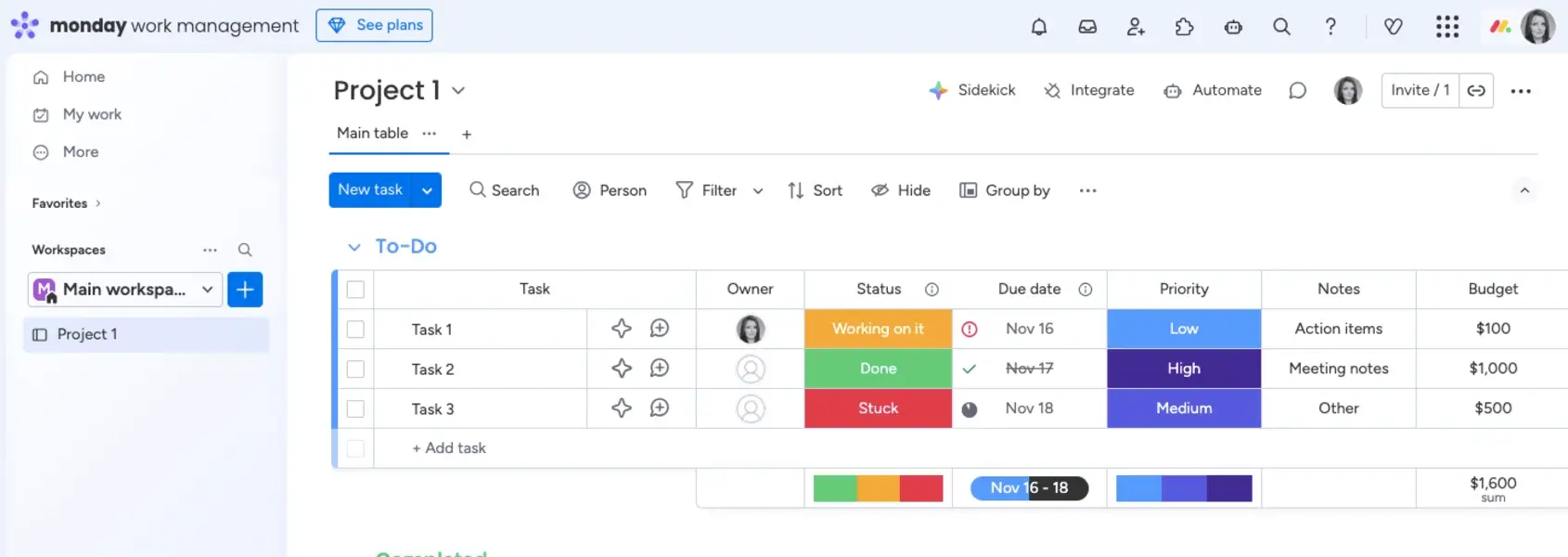
monday.com is a flexible Jira alternative that works just as well for dev teams running sprints as it does for marketing teams managing campaigns. It uses colorful, customizable boards that let you visualize tasks, timelines, and workloads at a glance. What’s more, setting up a new project takes minutes rather than hours.
The best part about monday.com is its automation builder. You can create custom workflows that assign tasks, send out status updates, and notify teammates based on triggers you define. When a task moves to “In Review,” for example, monday.com can automatically notify the QA lead and log time spent. During testing, this saved me from constantly pinging teammates for updates and kept everyone aligned without manual follow-ups.
monday.com also gives you serious flexibility in how you track project progress. You can switch between Kanban boards, Gantt charts, timeline views, and calendars instantly without having to re-enter your data. I found myself jumping between views all the time—something that always felt like a chore in Jira—but monday.com’s interface makes it seamless.
Other Things I Liked About monday.com
- 200+ integrations: Connect with Slack, GitHub, Zoom, and other third-party tools to centralize your workflow without leaving the apps your team already uses.
- AI assistant: Generate task summaries, draft updates, and get automation suggestions, with free AI credits included on all paid plans.
- Docs and workspaces: Create and collaborate on project documentation directly inside monday.com, keeping everything in one searchable place.
monday.com’s free plan supports up to two users and three boards, while the 14-day free trial unlocks Pro features so you can put every feature through its paces first. Paid plans start at $9/user/month (billed annually). For a full breakdown, check out our monday.com pricing guide. To learn more about how the platform works, start your free trial today.
Best for teams requiring a highly configurable, all-in-one project management hub.
- Free plan: Yes – unlimited pages for individuals, limited blocks for teams
- Free trial: Yes – 30 days (Business Plan, for teams with professional domains)
- Pricing: From $10/user/month (billed annually)
Pros:
- Combines docs, databases, wikis, and task management in a single workspace
- Highly customizable with templates for sprint planning, roadmaps, and bug tracking
- Generous free plan for individuals with unlimited pages
Cons:
- Performance can slow down with large databases or deeply nested pages
Notion handles task tracking and sprint management like Jira, but also doubles as a knowledge management hub for documentation and team wikis. This makes it a great option for cross-functional teams that want everything in one place without paying for Jira and Confluence separately.
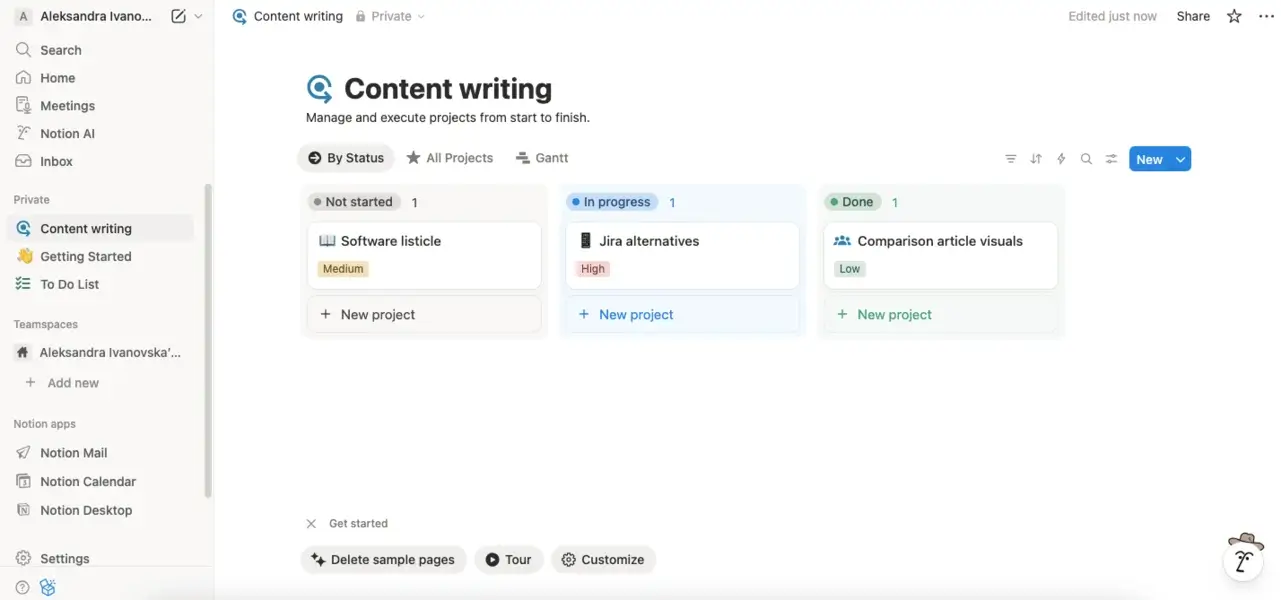
Notion allows you to build custom databases for tasks, bugs, feature requests, and roadmaps, then view them as Kanban boards, timelines, calendars, or tables. You can filter, sort, and link entries across projects, keeping everything connected rather than scattered. It also boasts more than 100 integrations, plus real-time collaboration features like inline comments and embedded databases, allowing you to connect all of your tools and reduce context-switching.
One thing to keep in mind, however, is that Notion can lag with large databases or heavily nested pages. This can be a hassle for teams requiring large-scale project tracking or complex workspace structures. If you’re new to the platform, our beginner’s guide to using Notion covers how to get started with real-world workflows.
Other Things I Liked About Notion
- Notion AI: Summarize meeting notes, draft content, and generate action items directly in your workspace, included on Business and Enterprise plans.
- Templates gallery: Hundreds of pre-built templates for sprint retrospectives, roadmaps, OKR tracking, and bug databases.
- Unlimited pages on the free plan: Unlike most tools, Notion lets individuals create unlimited pages and blocks at no cost.
Notion’s free plan supports unlimited pages for individuals (with a block limit for teams), up to 10 guests, and includes essentials like databases with subtasks and dependencies, basic forms, 7-day page history, and Notion Calendar.
When you’re ready for more (like unlimited file uploads, 30-day page history, and integrations with Slack and Google Drive), paid plans start at $10/user/month (billed annually). Create your free account today.
Best for simple team collaboration and communication without the feature overload.
- Free plan: Yes – limited to 1 project and 1GB storage
- Free trial: Yes – 30 days (no credit card required)
- Pricing: $15/user/month or $299/month flat for unlimited users (Pro Unlimited)
Pros:
- Clean, intuitive interface that requires almost no onboarding
- Flat-rate Pro Unlimited plan ($299/month) can support unlimited users
- Built-in team chat (Campfire), message boards, and automatic check-ins
Cons:
- Lacks built-in time tracking, Gantt charts, and workflow automations
Basecamp is similar to Jira in that it helps teams organize tasks and track project progress, but it takes a deliberately minimalist approach. It’s an alternative to Jira for small teams and agencies that value simplicity over advanced features and don’t want to spend weeks configuring their project management tool.
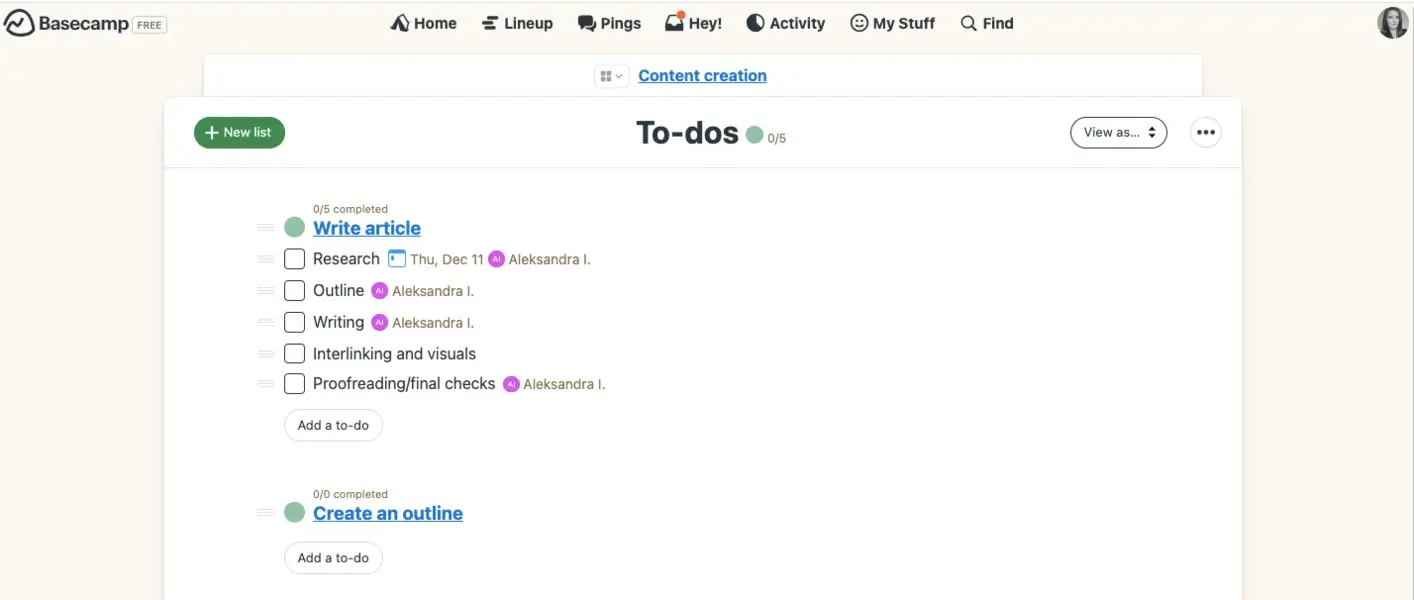
Basecamp gives you message boards, to-do lists, file sharing, schedules, and card tables (their take on Kanban boards). You can also set up group chats and send direct messages through its built-in communication tool, Campfire, so you can ditch Slack or Microsoft Teams if you want conversations centralized. I found the automatic check-ins feature particularly useful for async teams. You can schedule recurring questions like “What did you work on today?” so you can skip the status meeting altogether.
Unlike some of the other options on this list, Basecamp is really focused on keeping things straightforward. This is great if your team requires basic project management functions. However, if your team needs advanced reporting, detailed resource allocation, or more sophisticated features, you’ll likely outgrow it fast.
Other Things I Liked About Basecamp
- Hill Charts: A unique visual way to track progress on to-dos, showing whether tasks are in the “figuring it out” or “making it happen” phase.
- Free client access: Add clients and contractors to projects at no extra cost, which is great for agencies.
- Flat-rate pricing: The Pro Unlimited plan at $299/month covers unlimited users, making it cost-effective for larger teams.
Basecamp’s free plan lets you manage one project with 1GB of storage. You still get the core tools (message boards, to-dos, a Card Table (their take on Kanban), group chat, scheduling, and file storage), but you’re limited to a single project at a time and can’t invite clients or track time. When you need unlimited projects, client collaboration, or time tracking, paid plans start at $15/user/month. For larger teams, Pro Unlimited offers a flat $299/month for unlimited users and 5TB storage. Try Basecamp free for 30 days.

Best for simple, visual task management using Kanban boards
- Free plan: Yes – up to 10 boards, 10 collaborators, unlimited cards
- Free trial: Yes – 14 days on Premium (no credit card required)
- Pricing: From $5/user/month (billed annually)

Pros:
- Intuitive drag-and-drop Kanban boards that require zero training
- Generous free plan with unlimited cards and Power-Ups
- Lightweight and fast, even on mobile
Cons:
- Lacks native Gantt charts, time tracking, and advanced reporting
Trello is owned by Atlassian (the same company behind Jira), but it takes the opposite approach to project management: simple, visual, and lightweight instead of feature-heavy.
Trello allows you to organize work using Kanban boards, lists, and cards. When I tested it, the drag-and-drop interface felt almost effortless, and I had a working board set up in under five minutes. Its dashboard is clean and visual, and you can see what’s in progress, what’s stuck, and what’s done at a glance. Trello also has a handy automation tool called Butler, which lets you create rules, buttons, and scheduled commands to automate repetitive tasks.
The only downside to Trello is that it does not come with native Gantt charts or advanced reporting. You can fill these gaps with Power-Ups, but most analytics add-ons are paid, and Gantt chart tools typically cost $7+/user/month on top of your subscription. Setup often means creating separate accounts with third-party providers, which adds complexity. So, if your team runs complex software development projects with detailed sprint management, Trello might feel limiting or pricier than it first appears.
Other Things I Liked About Trello
- Power-Ups: Add integrations like Slack, Google Drive, and GitHub directly to your boards for extra functionality.
- Advanced checklists: Break tasks into subtasks with assignees and due dates on paid plans.
- Card templates: Save time on recurring tasks by turning any card into a reusable template.
Trello’s free plan covers up to 10 boards, unlimited cards, and basic automation, which is plenty for small teams or personal projects. The catch? You’re stuck with the Kanban view only (no Calendar or Timeline), and features like custom fields and advanced checklists require an upgrade. Paid plans start at $5/user/month (billed annually). Try Trello free for 14 days.

Best for cross-functional teams that need to connect everyday tasks to company-wide goals
- Free plan: Yes – up to 2 users
- Free trial: Yes – 30 days
- Pricing: From $10.99/user/month (billed annually)

Pros:
- Timeline view with dependency management for visualizing project schedules
- Goals and Portfolios connect daily tasks to broader company objectives
- 200+ integrations, including Slack, Google Workspace, and Microsoft 365
Cons:
- Native time tracking only available on Advanced plan ($24.99/user/month)
If you’re coordinating work across multiple departments and require visibility into each other’s progress, Asana offers a way to keep everyone aligned without endless status meetings. The Timeline view provides Gantt charts with dependency management, making it easy to identify what’s blocking progress and adjust project timelines accordingly.
The Goals feature connects everyday tasks to company-wide objectives, while Portfolios give project managers a bird’s-eye view of multiple projects at once. Moreover, Asana integrates with a wide variety of tools, enabling you to connect your tools seamlessly. It also has workflow automation which can help you automate tasks without requiring technical expertise.
While Asana delivers end-to-end features, it focuses on work management and team collaboration. So, it may be worth noting that you’ll have to upgrade to the paid plans if you need AI functionalities, native time tracking, and reporting tools. Among Jira competitors, it’s also one of the pricier options: the Starter plan requires a minimum of two seats, which can feel limiting for solo users and small teams.
Other Things I Liked About Asana
- AI Studio: Automates routine work and surfaces insights across projects
- Workload view: Shows team capacity at a glance for smarter resource allocation
- Custom fields: Add context to tasks with dropdowns, numbers, or text
Asana’s free plan (Personal) supports up to 2 users and includes unlimited tasks, unlimited projects, and list, board, and calendar views. You also get 100+ app integrations, unlimited storage (100MB per file), and mobile apps for iOS and Android. However, Timeline and Gantt views, custom fields, and workflow automation are only available on paid plans.
Asana’s Starter plan costs $10.99/user/month (billed annually) and unlocks these features plus forms and project dashboards. For teams needing native time tracking, goals, and portfolio management, the Advanced plan at $24.99/user/month. Enterprise pricing is custom. Get started with a 30-day free trial.

Best for enterprise teams that need advanced resource management and detailed project reporting
- Free plan: Yes – unlimited users with limited features
- Free trial: Yes – 14 days
- Pricing: From $10/user/month (billed annually)
Pros:
- Interactive Gantt charts with real-time dependency tracking
- Workload view for resource allocation across multiple projects
- 400+ integrations, including Salesforce, Adobe Creative Cloud, and Microsoft 365
Cons:
- Steeper learning curve compared to simpler project management tools
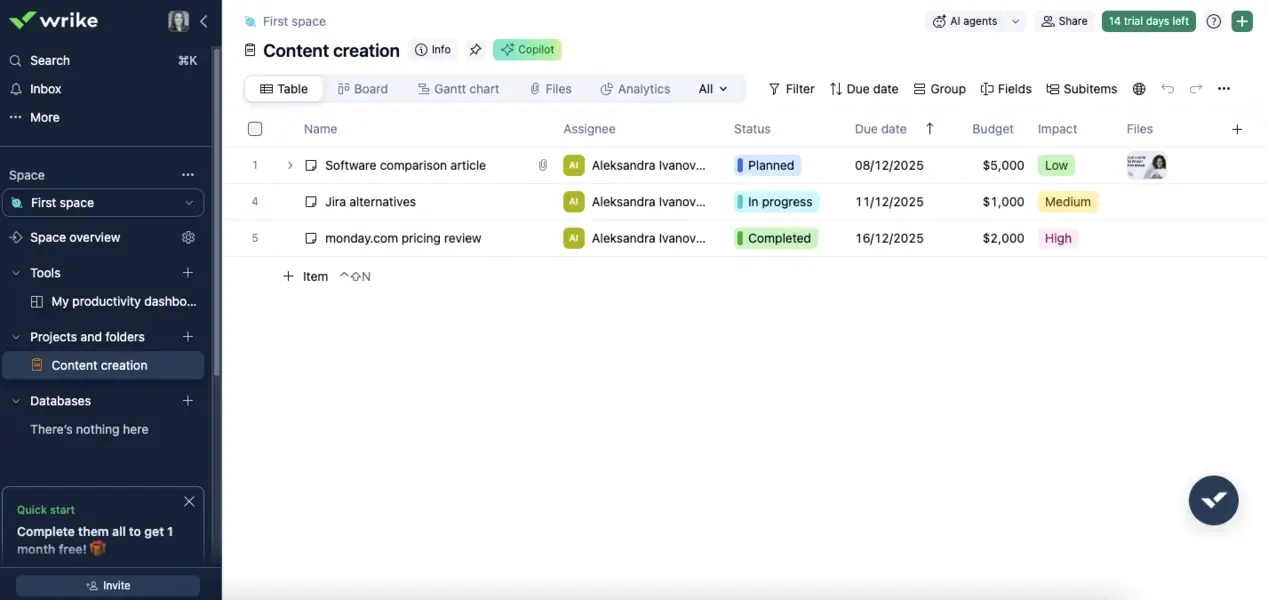
Wrike was built for enterprise-level project management, so while the tool now serves teams of all sizes, detailed reporting and resource planning are still at its core. During testing, I found the Gantt charts particularly impressive because they update in real time as you adjust task dependencies and project timelines.
That said, Wrike allows you to do much more than track tasks. The workload view shows team capacity at a glance, helping project managers balance resource allocation across concurrent projects. It also connects with various business tools (a whopping 400+), making it a great choice for cross-functional teams that rely on multiple platforms.
Wrike certainly has some nifty features, though many of them are largely centered around complex project tracking. For instance, it has custom request forms, advanced proofing for creative assets, and portfolio dashboards for executives. This depth makes it a solid option for organizations that have outgrown simpler tools and need something closer to platforms like Jira but without the developer-first complexity.
Other Things I Liked About Wrike
- Blueprints: Create reusable project templates with predefined tasks and dependencies
- Time tracking: Built-in timesheets available on Business plan and above
- Custom workflows: Design approval processes tailored to your team’s needs
Wrike’s free plan includes web, desktop, and mobile apps, along with Board and Table views for managing projects and tasks. You also get AI Essentials for content editing and comment summaries. Active task limits apply, and you won’t have access to Gantt charts, automation, custom fields, or dashboards—those start at $10/user/month (billed annually). For time tracking, resource planning, and file proofing, you’ll need the Business plan at $25/user/month. Enterprise and Pinnacle tiers offer custom pricing for larger teams. Start your free two-week trial today.

Best for teams that want to consolidate multiple work apps into one customizable platform
- Free plan: Yes – unlimited tasks and users, 60MB storage
- Free trial: Yes – 14 days
- Pricing: From $7/user/month (billed annually)

Pros:
- Highly customizable with 15+ views, including List, Board, Gantt, and Calendar
- Built-in docs, whiteboards, and goal tracking eliminate the need for separate tools
- Generous free plan with unlimited tasks and users
Cons:
- Steep learning curve due to the sheer number of features and customization options
ClickUp is an easy-to-use platform largely aimed at teams looking to replace multiple project management tools with a single workspace. It allows for task management across 15 views, and boasts some pretty robust workflow automation. With it, you can also create collaborative docs, whiteboards, and sprint dashboards, which is a handy addition for software development teams.
Beyond the usual offering, it comes with some interesting tools, like goal tracking that connects daily tasks to company objectives, native time tracking across all plans, and ClickUp Brain (an AI add-on for automated task creation and project summaries). The platform also integrates with over 1,000 apps, making it a good option for dev teams and cross-functional collaboration.
ClickUp positions itself as “one app to replace them all,” but that ambition comes with complexity. For those evaluating tools to replace Jira, ClickUp offers comparable sprint management features at a lower price point, though the learning curve is something to factor in. Read our full ClickUp review for a deeper look.
Other Things I Liked About ClickUp
- Custom fields: Add context to tasks with dropdowns, numbers, dates, or formulas
- Dashboards: Build visual reports to track team productivity and project progress
- Templates: Access over 100 pre-built templates for marketing, product, and engineering workflows
ClickUp’s Free Forever plan lets you add unlimited users and tasks at no cost, with access to Kanban boards, Calendar view, and Collaborative Docs. Sprint management and in-app video recording are included, along with two-factor authentication and round-the-clock support. Storage tops out at 60MB, and you’ll only get one form and basic custom fields. Features like Gantt charts, native time tracking, guest permissions, and resource management are reserved for paid tiers.
Moving to the Unlimited plan ($7/user/month, billed annually) opens up unlimited storage, integrations, and time tracking. The Business plan at $12/user/month ads sprint reporting and workload management.. Enterprise pricing is available on request. For a deeper dive, read our ClickUp pricing guide, or get started for free to see it in action.

Best for teams that prefer spreadsheet-style project management with enterprise-grade automation
- Free plan: No (discontinued in 2025)
- Free trial: Yes – 30 days
- Pricing: From $9/user/month (billed annually)
Pros:
- Familiar spreadsheet interface with powerful Gantt charts and project timelines
- Robust workflow automation for approvals, notifications, and status updates
- Native integrations with Microsoft 365, Slack, Salesforce, and Jira
Cons:
- No free plan; Business plan requires a minimum of 3 users
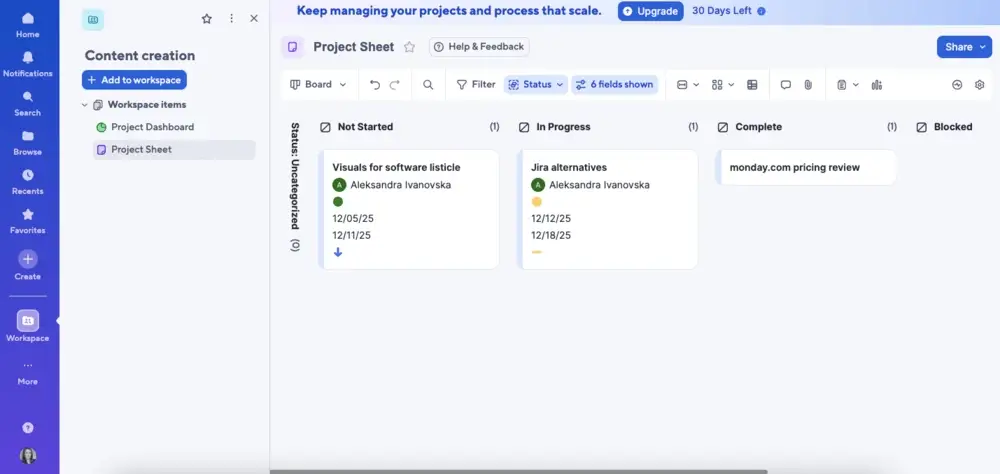
Perhaps best known for its spreadsheet-style interface, Smartsheet got its start as a project management tool for teams that wanted more power than Excel could offer. Now one of the more popular project management tools on the market, the platform has expanded its functionality to cover Gantt charts, Kanban boards, calendars, and automated workflows.
Smartsheet is built for structured, data-heavy project tracking. Teams that work with complex timelines, resource allocation, and detailed reporting will feel right at home here. You can manage resources, build dashboards, and monitor timelines in one place, giving you full visibility into project status without digging through scattered updates.
The built-in automation handles approvals, alerts, and recurring tasks, which frees up hours you’d otherwise spend on manual follow-ups. Real-time collaboration keeps everyone aligned and cuts down on lengthy email threads. And if your team already relies on Microsoft 365, Google Workspace, Slack, or Salesforce, Smartsheet connects with them directly, so you can get started without overhauling your current setup.
For teams researching project management tools similar to Jira, Smartsheet offers comparable depth for managing complex projects and cross-functional teams. However, the interface leans more toward operations and PMO use cases than agile software development.
Other Things I Liked About Smartsheet
- Dashboards: Build visual summaries that pull data from multiple sheets in real time
- Forms: Collect requests and information through customizable intake forms
- Resource management: Track team workload and capacity (available as an add-on)
Smartsheet doesn’t offer a free plan, but you can test the platform with a 30-day trial. The Pro plan starts at $9/user/month (billed annually) and supports up to 10 users. It includes unlimited sheets, forms, reports, and dashboards, along with Gantt, table, board, and calendar views. You also get 250 automations per month and 20GB of attachment storage. Timeline view, team workload tracking, baselines, and activity logs are reserved for higher tiers.
The Business plan at $19/user/month (minimum 3 users) unlocks these features plus unlimited automations and proofing tools. Enterprise pricing is custom. Start your free 30-day trial today.

Best for teams that want flat-rate pricing with unlimited users
- Free plan: No
- Free trial: Yes – 14 days
- Pricing: From $45/month flat (billed annually)
Pros:
- Flat-rate pricing with no per-user fees, making it budget-friendly for growing teams
- Built-in time tracking, proofing tools, and Gantt charts
- Simple interface with a shorter learning curve than most competitors
Cons:
- Limited third-party integrations compared to tools like Wrike or Trello
ProofHub is a great option if you’re managing projects across multiple teams and want to keep costs predictable as your organization grows. Unlike Jira, which uses per-user pricing and is built primarily for software development teams, ProofHub offers flat-fee pricing and a simpler interface that works well for non-technical teams. It’s an effective way to streamline your project management process without worrying about per-seat pricing.
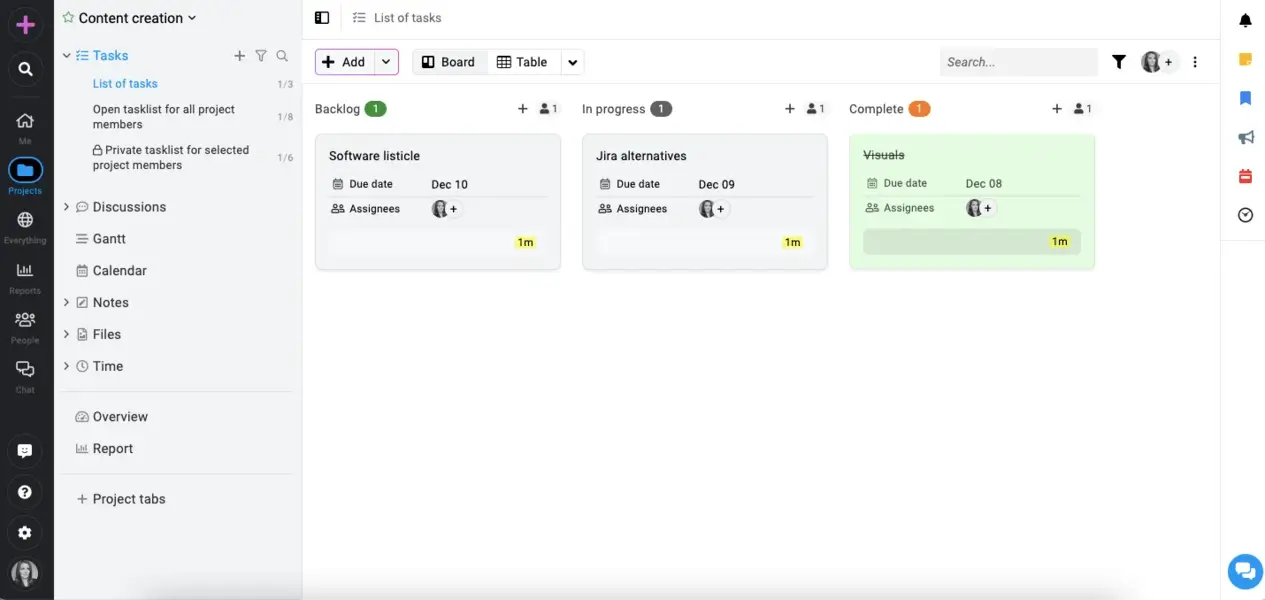
Along with task management through Kanban boards, Gantt charts, and table views, ProofHub can help you track time, proof creative assets, and keep discussions organized with built-in chat and threaded comments. When I tested it, the interface felt clean and intuitive, and the learning curve is noticeably shorter than most competitors.
There’s also an online proofing tool that lets reviewers annotate files directly, which is useful for creative teams managing approval workflows. However, it is not without weaknesses., Compared to other tools, ProofHub’s integration options are limited, so teams relying heavily on third-party apps may find the ecosystem restrictive.
Other Things I Liked About ProofHub
- Custom roles: Control access levels for different team members and external clients
- Announcements: Share company-wide updates and celebrate milestones in one place
- Forms: Create custom intake forms to collect project requests
You won’t find a free plan with ProofHub, but you do get 14 days to try everything before paying. On the Essential plan ($45/month flat, billed annually), you get Gantt charts, Kanban boards, time tracking, file proofing, discussions, and custom fields across 40 projects with 15GB of storage. What’s missing at this level: custom roles, workflows, API access, and advanced reporting.
Step up to Ultimate Control ($89/month for the first three months, then $135/month) and those limits disappear. You get unlimited projects, 100GB of storage, plus white labeling, IP restrictions, and priority support. The real draw here is flat-rate billing for unlimited users, so adding your tenth or fiftieth team member costs exactly the same.
Where Jira centers on software development with per-seat costs, ProofHub is built for marketing, creative, and operations teams who need proofing tools and predictable pricing under one roof. Try ProofHub out for free.

Best for AI-powered task management with real-time collaboration
- Free plan: Yes – free forever with limited features
- Free trial: Free plan serves as trial
- Pricing: From $16/user/month (billed annually)

Pros:
- AI-powered workspace with GPT-4o and Claude integration for automating tasks
- Multiple views, including task lists, mind maps, boards, and calendars
- Built-in video chat and real-time collaboration across devices
Cons:
- Fewer third-party integrations compared to competitors
If you’d rather type a prompt than configure sprints and backlogs the way Jira requires, Taskade takes a different approach. It uses AI agents to automate repetitive work: generating task lists, summarizing notes, and breaking down projects into actionable steps. During testing, I typed a simple prompt and watched it build out an entire project structure in seconds.
The platform also supports hybrid project management through multiple views. You can assign tasks in a traditional list, visualize workflows on a board, or map out ideas in a mind map, all within the same project. That means less time wrestling with setup and more time actually moving work forward.
On the downside, Taskade’s integration library is smaller than competitors like ClickUp or Asana, which may limit workflow automation for teams relying on specific third-party apps.
Other Things I Liked About Taskade
- Real-time video chat: Start video calls directly within projects; there’s no need for separate meeting tools, keeping collaboration in one place.
- Cross-platform sync: Works seamlessly across web, desktop, and mobile with instant syncing, so you can manage projects from anywhere.
- User-friendly interface: Clean, minimal design with a short learning curve. New users can start working immediately without extensive onboarding.
Taskade’s free plan includes 1,000 AI credits per month, up to 3 live apps, and access to 500+ community templates. It’s limited to one user, and you won’t get unlimited AI agents, automations, or third-party integrations on this tier. Paid plans start at $6/month for Starter (3 users, 10,000 credits) or $16/month for Pro (10 users, unlimited agents and automations).
Unlike Jira’s per-user pricing that climbs as your team grows, Taskade bundles users into flat tiers, so you know exactly what you’re paying each month. Start using Taskade for free.
How to Choose the Best Jira Alternative For Your Team
There’s no single best Jira alternative; it really comes down to what your team needs and how you prefer to work. Here’s how to find the right fit:
- Identify why you’re leaving Jira. Is it the complexity? The pricing? Missing features? Knowing your pain points helps you prioritize what matters most in a new tool.
- List your non-negotiables. Do you need Gantt charts and resource allocation? Built-in time tracking? Agile project management with sprint planning? Write down three to five must-have features before you start comparing.
- Match features to your workflow. If you’re a software development team, look for tools with sprint management and bug tracking. For cross-functional teams, prioritize platforms with multiple project views and workflow automation.
- Test with a real project. Most tools on this list offer free plans or trials, so be sure to use them. Spend at least a week running an actual project through the platform rather than just clicking around. You’ll quickly feel whether it fits your team’s rhythm.
- Get your team’s input. Project management software is a personal choice. Have a few team members test the top contenders and gather feedback before committing. The best tool is the one your team will actually use.
In Conclusion: What’s the Best Jira Alternative?
If I had to pick just one, monday.com takes the top spot. It strikes the right balance between powerful project tracking and an intuitive interface that doesn’t require weeks of onboarding. Whether you’re managing sprints or coordinating cross-functional work, it adapts to how your team actually operates.
However, monday.com isn’t the only strong option. I would also highly recommend that you consider ClickUp and Trello.
ClickUp is ideal if you want maximum customization without the enterprise price tag. It packs more features into its free plan than most competitors, making it a solid choice for teams that need flexibility on a budget.
Meanwhile, Trello remains unbeatable for simplicity. If Jira felt like overkill and you just need a clean, visual way to manage tasks, Trello’s board-based approach gets teams up and running in minutes.
Whichever tool you choose, switching project management tools can feel daunting. However, you can take comfort in the fact that it’s also an opportunity to find something that actually fits your workflow instead of fighting against it. If you’re still weighing your options, check out our Asana vs. Jira comparison for a deeper dive into what each platform offers.
FAQs: Best Jira Alternatives
What is the best alternative to Jira?
It depends on your needs, but monday.com is a strong all-around choice because it offers robust project tracking and workflow automation without the steep learning curve.
Which is better, Zoho or Jira?
Zoho Projects works well for small to mid-sized teams wanting an affordable project management solution with built-in time tracking. Jira is better suited for complex software development workflows and agile teams needing advanced sprint management.
Does Google have a Jira alternative?
Not exactly. Google offers tools like Google Tasks and Google Sheets for basic task management, but nothing purpose-built for project management. Most teams pair Google Workspace with a dedicated tool like Asana or Trello instead.
Can Microsoft Planner replace Jira?
For simple task management, yes. Planner integrates nicely with Microsoft 365 and works well for teams already in that ecosystem. But if you need advanced features like Gantt charts, custom workflows, or detailed reporting, you’ll likely find Planner too limited.